
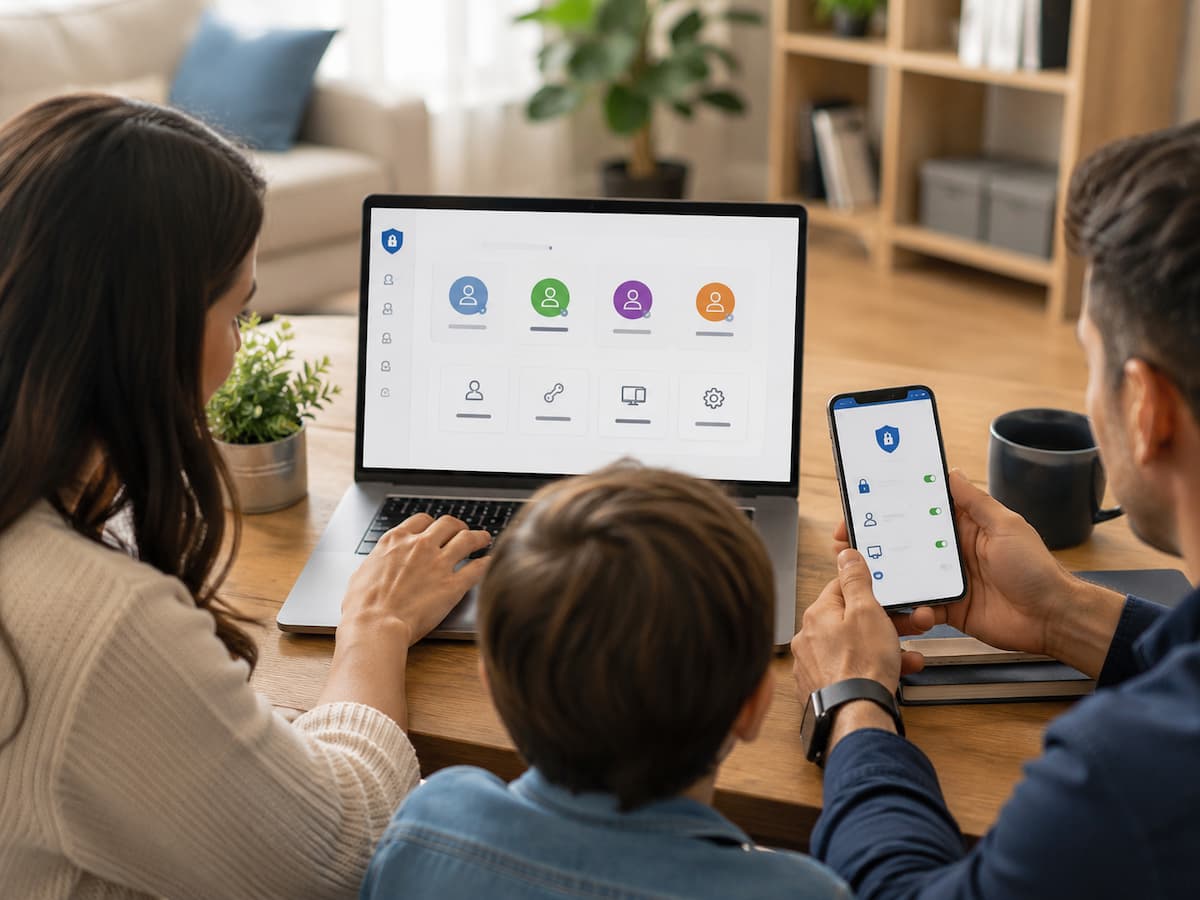
Sharing online accounts can be convenient. For instance, family members might share streaming services, couples might use the same shopping account, and small teams might share a business platform. However, the problem is that an account intended for multiple people can also leak information that shouldn’t be shared. Saved addresses, private messages, payment details, search history, recovery emails, uploaded documents, or active device sessions can all become visible to others because everyone uses the same login credentials.
The safest approach is to avoid assuming that sharing passwords is the same as sharing privacy. This means you need a clear understanding of what information your account contains, who has access to that information, and what controls the service offers. In this guide, you will learn how to distinguish personal information from shared activity, manage devices and sessions, protect recovery options, use privacy settings correctly, and determine when creating separate accounts is a better option. Our goal is to provide practical privacy management solutions for ordinary families and small teams without making account sharing unnecessarily complicated.
Understanding What Information is Actually Shared
A common mistake is assuming that every aspect of a shared account enjoys the same level of privacy. In reality, an account can contain many different types of information. Some information may be shared intentionally, while other data—even within the same account—might be considered private. For example, a family streaming account might include shared viewing preferences, yet linked email addresses or saved payment methods could reveal information a family member prefers not to share with others. The situation with shopping accounts is more complex, as order history, shipping addresses, saved gift cards, wish lists, and recommendations can all be interconnected.
| Information | Usually Safe to Share? | Privacy Concern |
|---|---|---|
| Shared service preferences | Often | Usually low |
| Payment information | With caution | High |
| Personal messages | No | Very high |
| Recovery email or phone | Usually no | High |
| Personal documents | No | Very high |
| Device history | With caution | Moderate to high |
Before changing anything, make a quick inventory of what the account stores. Look through profile information, payment methods, messages, saved addresses, connected applications, uploaded files, account history, and logged-in devices. This simple review often reveals that an account is carrying far more personal information than the users originally realized.
Separate Personal Information From Shared Information
The best long-term solution is often to keep shared activity and personal activity separate. Many modern services provide family profiles, member accounts, guest access, delegated permissions, or separate user spaces. Use those features whenever they are available instead of giving every person the same master login. A profile-based system can prevent one person’s recommendations, history, or preferences from being mixed with another person’s activity, although it does not necessarily isolate every type of account information.
For example, a household might share a streaming subscription but use individual profiles. A family might use a shared shopping service while keeping personal email accounts separate. A small team might use individual employee accounts with role-based permissions instead of passing around one administrator password. The principle is simple: share the service, not necessarily the identity behind the service.
Privacy tip: If a service lets you invite another person as a separate member, that is usually preferable to giving that person the main account password.
Another frequently overlooked issue is accidental data mixing. If several people use one browser profile, personal searches, autofill information, saved addresses, cookies, and account sessions can become visible to the next person using the computer. Separate browser profiles or separate device accounts can reduce this problem.
Check Account Permissions and Connected Services
Shared accounts often become connected to other applications over time. A person may authorize a calendar application, smart television, browser extension, mobile app, game, shopping tool, or third-party service. The account owner may forget that these connections still exist. When several people share the account, the risk becomes greater because one person’s decision to connect an application can affect everyone using the account.
Open the account’s security, privacy, or connected-apps section and review every service that has access. Ask three questions: Do we still use this service? Does it really need access? Do we recognize the application and the permission it received? If the answer is no, remove the connection where the service allows it. Do not assume that deleting an application from a phone automatically removes its access to the online account. These are often separate actions. Removing an app from the device may leave the account authorization active.
Pay attention to permission levels.
Not all permissions are equal. An application that can only view basic profile information is different from one that can read files, manage contacts, access messages, or modify account settings. If a service offers granular permissions, give the minimum access needed for the task.
Warning: Never approve a third-party connection simply because the application is convenient. Read what information it can access before granting permission.
Manage Devices, Sessions, and Sign-Ins
A password is only one part of account access. Devices and active sessions matter just as much. Someone may still be signed in on an old phone, tablet, smart TV, work computer, or browser that you forgot about. This is particularly important after a person stops using a shared account. Simply changing your routine does not necessarily remove an existing session.
Major account platforms provide tools for reviewing devices and recent sessions. Google, for example, allows users to review devices and sessions that recently accessed an account and sign out of devices they no longer recognize or use. Google notes that multiple sessions can appear for the same device and that sessions may be created by browsers, apps, services, or other sign-ins.
Apple likewise provides an account device list where users can review devices connected to their Apple Account and remove devices they no longer use or do not recognize. Apple explains that removing a device can prevent it from accessing iCloud and other Apple services until it is signed in again. Microsoft also provides a “sign out everywhere” option for situations where users believe their account may have been accessed by someone else. Microsoft says the process can take up to 24 hours and has an exception for Xbox consoles.
| Situation | Recommended Action |
|---|---|
| Old phone no longer used | Remove or sign out the device. |
| Former household member | Review sessions and change access where appropriate. |
| Unknown device | Investigate and secure the account. |
| Shared public computer | Sign out and remove saved credentials. |
| Lost device | Use the provider’s remote security tools immediately. |
Protect Passwords and Recovery Options
One of the hardest privacy problems with shared accounts is deciding who controls the master password. If everyone knows it, everyone may be able to change important settings. If only one person knows it, that person effectively becomes the account administrator. Neither arrangement is ideal for every situation, so the right approach depends on the service and the relationship between users.
Never reuse a shared account password on personal accounts. If the shared password is exposed, attackers may try it elsewhere. CISA recommends strong, unique passwords and identifies password managers as a practical way to create and store them.
Recovery information deserves even more attention. A recovery email address or phone number can help regain access after a forgotten password, but it can also reveal personal information or give another person influence over account recovery. Before sharing an account, determine whose email and phone number are attached to recovery. Make sure that information belongs to an appropriate account administrator and is still accessible.
Use Multi-Factor Authentication Carefully
Multi-factor authentication, often called MFA or two-factor authentication, adds another verification step beyond the password. CISA recommends MFA because it makes unauthorized account access harder even when someone obtains a password.
Shared accounts create a practical challenge: who receives the second factor? If a verification code always goes to one person’s phone, that person effectively controls access. If several people need access, a service may offer safer alternatives such as authenticator apps, security keys, trusted devices, or delegated access. The exact options vary by provider.
Apple describes two-factor authentication as an additional security layer for Apple Accounts and uses trusted devices or trusted phone numbers for verification. This illustrates why sharing a highly personal primary account is usually a poor arrangement. A personal account may contain security controls that are closely tied to one person’s devices and identity. For a genuinely shared service, decide in advance who manages MFA, how legitimate members regain access, and what happens when someone leaves the group. Avoid sending verification codes casually through group chats or storing them in places where unnecessary people can see them.
Review Privacy and Personalization Settings
Privacy settings are often overlooked because an account can continue working normally even when those settings are poorly configured. Look for controls related to activity history, personalization, advertising preferences, location, contact synchronization, profile visibility, search history, recommendations, and data sharing. Not every setting will be available on every platform, so focus on the controls the service actually provides.
Shared accounts make personalization especially tricky. One person’s searches, purchases, viewing habits, or interests can influence recommendations for everyone else. This may not be a serious security problem, but it can still create an unwanted privacy experience. A separate profile may solve the problem more effectively than repeatedly clearing history.
Do not confuse privacy with deleting history.
Clearing visible history can make a screen look cleaner, but it does not necessarily delete every record held by the provider. Services may have separate controls for account activity, personalization, downloads, search history, or stored data. Read the provider’s explanation before assuming that one “clear history” button removes everything. Also remember that privacy settings can change after service updates. A setting that was appropriate six months ago deserves another look if the account’s features or users have changed.
Be Careful With Shared Browsers and Devices
Sometimes the account itself is configured reasonably well, but the device creates the privacy problem. A shared laptop can store cookies, browser history, autofill entries, downloaded files, screenshots, and saved passwords. If another person opens the same browser profile, they may see information that was never intended for them.
The easiest solution is to create separate operating-system or browser profiles. Each person can then maintain their own bookmarks, cookies, saved logins, and browsing history. On a family computer, this is usually more practical than repeatedly signing in and out of every service. Shared devices also deserve attention when passwords are involved. Do not save a sensitive account password in a browser that everyone using the computer can open. If the device has separate user accounts, use them. If it is a public or borrowed computer, avoid saving login information entirely.
| Device Situation | Better Privacy Practice |
|---|---|
| Family computer | Use separate user or browser profiles. |
| Public computer | Do not save passwords or stay signed in. |
| Shared tablet | Use separate profiles if supported |
| Smart TV | Remove old accounts before giving them away or selling them. |
Know When an Account Should Not Be Shared
Some accounts are simply too personal to share safely. Personal email, primary cloud storage, banking, healthcare portals, government services, password managers, and personal social accounts often contain information that belongs to one individual. Sharing the password can expose far more than the service itself.
A better approach is to use a service’s official sharing features. For example, a cloud provider may let one person share a particular folder instead of the entire storage account. A family service may provide separate member accounts. A business platform may support roles with different permissions. These arrangements preserve the useful part of collaboration without exposing unrelated personal information.
Rule of thumb: If an account can reset other accounts, expose private communications, reveal financial information, or access large amounts of personal data, avoid sharing its main login.
Relationships can also change. A shared account that worked well for years may become inappropriate after a separation, employee departure, roommate change, or change in responsibilities. Privacy management should reflect the current situation rather than an old agreement.
Create a Simple Privacy Check Routine
You do not need to inspect every setting every day. A short review every few months is enough for many ordinary shared accounts, with an immediate review whenever someone joins or leaves the group. The most important thing is consistency.
- Review who currently uses the account.
- Check profiles and member permissions.
- Review signed-in devices and active sessions.
- Remove old or unknown devices.
- Check connected applications and third-party permissions.
- Review the recovery email and phone number.
- Confirm MFA is controlled appropriately.
- Review privacy and personalization settings.
- Check whether payment details or personal documents are exposed.
- Remove access that is no longer necessary.
Keep the routine especially simple for families. A complicated security process is less likely to be followed. For small teams, write down who owns the account, who can change security settings, how access is granted, and what happens when a person leaves. This reduces confusion later.
Troubleshoot Common Shared-Account Privacy Problems
- Someone can still access the account after you changed the password. Check the account’s active sessions and connected devices. Some services may keep sessions active for a period of time, so use the provider’s sign-out or device-removal controls when available.
- A former user still receives verification codes. Review trusted phone numbers, trusted devices, recovery addresses, and authentication methods. Remove obsolete methods according to the provider’s security process.
- Another person sees your searches or recommendations. Use separate profiles or accounts rather than repeatedly deleting history. Personalization is often tied to the profile itself.
- An old application still has account access. Look for connected apps, authorized services, or third-party access in the account’s security settings. Removing the application from your phone may not be enough.
- You discover an unfamiliar device. Do not ignore it. First review its details and recent activity if the provider supplies that information. If you cannot confirm that it belongs to an authorized user, sign it out or remove it and follow the provider’s account-security guidance. Google, Apple, and Microsoft all provide account-management tools for reviewing or removing access.
Conclusion
Managing privacy on a shared online account starts with understanding what is actually being shared. A single password can provide access to much more than the service people originally intended to share. Profiles, devices, browser sessions, recovery methods, connected applications, payment details, and activity history can all become part of the privacy picture.
The strongest approach is to use separate accounts or member profiles whenever a service supports them, keep personal information outside shared accounts, review connected devices regularly, protect recovery options, and enable MFA where it can be managed safely. When someone leaves the group, treat that as a reason to review access rather than simply assuming they are no longer connected. You do not need complicated security tools to make meaningful improvements. Start by opening the account’s security page, checking who and what has access, and removing anything that no longer belongs there. A few minutes of careful account management can prevent a surprising amount of accidental exposure.
FAQs
1. Does everyone need to know the shared account’s password?
Not necessarily. If the service offers individual access for members, users should generally have their own login credentials rather than sharing a master password. If only one login account is supported, access to the password should be restricted to those who actually require administrative rights. Never use that password for a personal account, as shared credentials can eventually leak via devices, browsers, messages, or previous users.
2. Will everyone be removed from the shared account if I change my password?
Not necessarily. Changing the password may prevent future logins, but existing sessions or trusted devices can sometimes remain active. The correct procedure depends on the service provider. After changing the password, check the account’s list of devices and sessions and use any available features, such as “log out of all devices” or device removal options. For example, Microsoft offers a “log out of all devices” option, while Google and Apple provide tools to view devices linked to the account.
3. Should shared accounts use two-factor authentication?
Yes, provided the service supports it and it can be managed correctly. Multi-factor authentication (MFA) offers additional protection beyond just a password. The challenge with shared accounts is determining who manages the authentication method. Ensure that legitimate users have access to the appropriate authentication methods and do not share sensitive verification codes indiscriminately. For accounts requiring a high level of privacy, it is generally better to create individual accounts rather than using one person’s MFA settings for all accounts.
4. What should I do if someone stops using a shared account?
Check the account immediately. If the service supports it, remove the user’s profile or membership; check active devices; revoke unnecessary third-party access; review account recovery methods; and change the password if the user knows it. Also, check shared browsers, smart TVs, tablets, and other devices. Do not rely on memory alone; even if the user stops using the service, their phone or browser might still be logged in.
5. Is a separate account always better than a shared account?
Not necessarily. A separate account is generally better for personal privacy, but for simple shared services, a separate account may not be necessary. The key factor is whether the service provider can distinguish between identities and permissions. A family plan with personal profiles can strike a good balance between convenience and privacy. Our goal is not to completely eliminate all shared accounts; the aim is to prevent people from accessing information they do not need.

Daniel Mercer writes about everyday technology problems, including computer and network troubleshooting, device care, software and apps, digital organization, and online privacy. He focuses on practical explanations that help readers understand what may be causing a problem before changing settings or replacing equipment. Daniel prefers clear, straightforward guidance over unnecessary technical jargon and aims to make technology easier to understand for everyday users. His work appears across FinStructura’s five main content areas.