
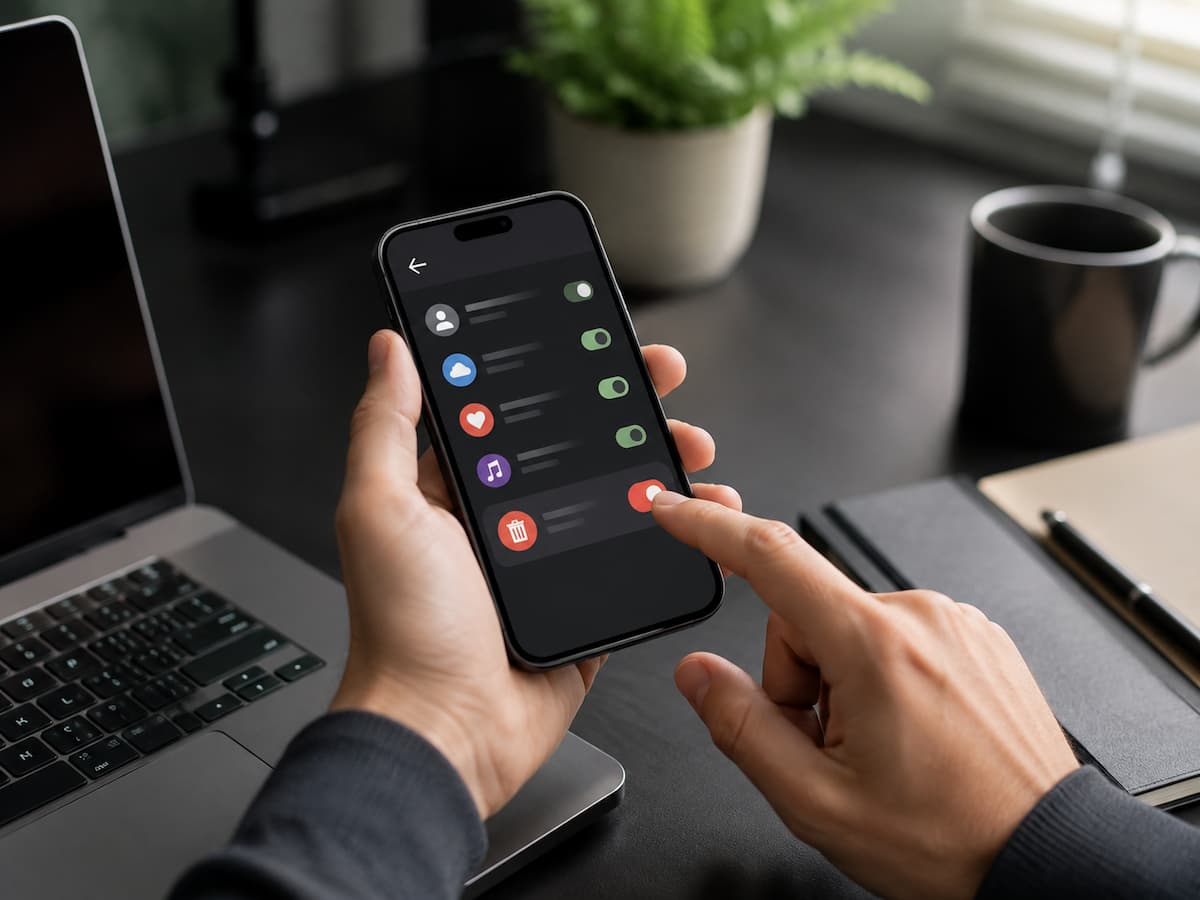
You might remember granting an app access to your account. However, what you likely forget is whether that access remains active months or even years later. Photo editing software, productivity tools, online stores, browser extensions, AI tools, and social media apps can all connect to your account for perfectly legitimate reasons. You might want to import contacts, log in quickly, sync files, or use features that require access to other services. Yet, once the task is complete, the connection may still be active.
This raises a simple question regarding account management: you may still be granting access to services you no longer use or approve of. That is why it is wise to make removing unnecessary third-party access part of your routine account maintenance. Our goal is not to disconnect every app; for services you use frequently, certain integrations are very useful—even essential. Our aim is to ensure that every connection still serves a purpose and that you are clearly aware of what you have authorized.
Start With the Accounts That Matter Most
There is no need to review every online account simultaneously. Begin with the accounts that contain valuable information or are used to sign into other services. These might include your primary email account, cloud storage, social platforms, work accounts, and major identity providers.
Look for security or privacy areas containing terms such as:
- Connected apps
- Third-party apps
- Apps and services
- Authorized applications
- Account access
- Sign in with
- Connected accounts
- App permissions
The wording differs between providers, so don’t assume every account will use the same menu structure. Once you find the list, don’t immediately start deleting connections. First determine what each service is and why it has access. That distinction matters because an unfamiliar name is not automatically a dangerous application. Some services use a company name that differs from the product name you remember, while an old integration may simply have been forgotten.
Build a Simple “Keep, Review, Remove” System
A long list of connected applications can be difficult to evaluate one item at a time. Instead, classify each connection into one of three groups.
- Keep means you recognize the service, still use it, and understand why it needs the permission.
- Review means you recognize the service but aren’t sure whether the connection is still necessary or what information it can access.
- Remove means you no longer use the service, don’t recognize the connection, or no longer want it to have access.
This simple system prevents two opposite mistakes. The first is leaving everything connected because reviewing permissions feels inconvenient. The second is removing useful integrations simply because you don’t recognize the name immediately. A permission review should be deliberate rather than reactive.
Understand What You Actually Authorized
The name of an application tells you very little about the significance of a connection.A third-party service might only receive basic profile information. Another could have access to specific files, contacts, calendars, messages, or other account information, depending on the service and permissions you granted.
Read the permission description before deciding.
Ask:
- What information can this service access?
- Why did I originally give it access?
- Does the service still need that access?
- Would I grant the same permission today?
The final question is particularly useful. If you would not approve the connection today, that is a strong reason to reconsider keeping it.
“Sign in With” Does Not Mean Every App Has the Same Access
Using a button such as “Sign in with Google” or another identity provider can make account creation easier, but the permissions involved depend on what you authorize. Signing in through an identity provider does not necessarily give the application unlimited access to everything in your account.
Some services may receive basic account information needed to create your profile. Others may request additional permissions for particular features. This is why you should evaluate the permission screen rather than judging a connection solely by the fact that you used a “Sign in with” option. If you no longer use the service, removing its connection is generally cleaner than leaving the authorization active indefinitely.
Remove Access From the Account Provider
Once you’ve identified a connection you no longer need, use the account provider’s official security or privacy settings to revoke access. For example, if an application was authorized through your Google Account, Google provides controls for reviewing third-party connections and removing access. Other providers offer similar account-management tools, although the names and locations of the settings differ. The important point is to revoke access from the account that granted the permission.
You don’t necessarily need to uninstall the application from your phone first. Deleting an app from a device and revoking an account authorization are different actions. An application can be removed from your phone while a third-party authorization remains associated with your online account. Likewise, revoking account access may not automatically delete information that the third party already collected. Those are separate issues.
Uninstalling an App Is Not the Same as Revoking Access
This is one of the most common sources of confusion. Imagine that you installed a productivity application, connected it to your cloud account, and later deleted the application from your phone. The application is no longer on your device.
That does not necessarily tell you whether the online service still has authorization to access your account. The reverse can also happen. You might revoke an application’s account permissions but leave its local application installed.
For a proper cleanup, consider both sides:
- Account authorization: Remove the service’s permission from your online account if you no longer want the connection.
- Local software: Uninstall the application or extension from devices where you no longer need it.
- Third-party data: If you want information already stored by the service deleted, check that company’s privacy or account-deletion process separately.
Treating these as three separate tasks makes the cleanup much more thorough.
Don’t Ignore Browser Extensions
Browser extensions deserve their own review because they can interact closely with the websites and information you access through the browser. An extension you installed years ago may no longer be maintained or necessary. Another may have permissions that are broader than you expected. Review your installed extensions periodically and remove those you don’t recognize or no longer need.
Pay particular attention to extensions that can read or modify information on websites. The exact permissions vary by browser and extension, so examine what each extension requests rather than assuming every extension has the same level of access. If you no longer remember why you installed an extension, removing it is often simpler than keeping it “just in case.” You can reinstall a legitimate extension later if you discover that you actually need it.
What If You Don’t Recognize an App?
An unfamiliar application deserves investigation, but don’t immediately assume your account has been hacked. There are several harmless explanations. The service may have changed its name, you may have connected it years ago, or the company name displayed by the account provider may differ from the brand you remember. Start by examining the available information about the connection.
Look at:
- The application or service name
- When access was granted, if shown
- The permissions requested
- The account or email involved
- Any associated website or developer information
If you still cannot identify it and don’t need the connection, revoking access is a reasonable precaution. If you see other signs of unauthorized activity, such as unfamiliar login sessions or unexpected account changes, treat the situation as a broader security issue rather than merely an app-permission problem.
Revoking Access Does Not Erase Previously Shared Data
This distinction is extremely important. Suppose an application had permission to read certain information, and you later revoke that permission. The revocation can prevent future access through that authorization, but it does not automatically guarantee that the third party deleted information it already received.
If you want previously collected information removed, check the service’s privacy policy, account settings, or data-deletion process. Some services provide a direct account deletion option. Others may provide a privacy request process. The exact process varies, so avoid assuming that disconnecting an account and deleting stored data are the same action.
Be More Careful With High-Impact Permissions
Not all permissions deserve equal attention. Access to basic account information may have very different implications from access to private files, contacts, calendars, messages, financial information, or other sensitive data. When reviewing connections, prioritize applications with broader permissions. A useful rule is:
“The more information an application can access, the stronger the reason to confirm that the access is still necessary.”
An application that synchronizes your calendar may have a legitimate reason to access calendar data. If you stopped using that synchronization service months ago, there is little reason to leave the permission active. The question isn’t whether the permission is inherently bad. The question is whether the permission still serves a purpose.
Check Connections After Changing Your Password
Changing your password is a useful security measure in certain situations, but it should not automatically be treated as a complete cleanup. Some third-party connections use authorization mechanisms that can remain active independently of the password. If you change a password because you suspect unauthorized access, review connected applications, active sessions, devices, and authentication methods as well.
The exact behavior depends on the service. A password change may invalidate some sessions or credentials, while other connections can remain authorized until explicitly revoked. This is another reason an account security review should include more than the password itself.
What to Do After Removing a Suspicious Connection
If you remove an application because you believe it may have been unauthorized, pause before assuming the problem is solved. Review recent account activity and active sessions. Check whether the password should be changed. Make sure two-factor authentication is enabled where available. Examine other connected applications for anything else you don’t recognize.
If the suspicious application had access to sensitive information, consider what information it may already have received and review the provider’s privacy or data-deletion options. The right response depends on what happened. A forgotten connection from an old service is very different from an application that appeared without your knowledge and had broad access.
Keep Your Connected-App List Small
A clean permissions list is easier to understand and maintain. That doesn’t mean you should aim for zero connections. Modern services often depend on integrations, and legitimate applications can provide useful functionality. Instead, aim for intentional connections.
If you use a cloud backup service every week, there is a clear reason for its authorization. If you connected a photo application three years ago for a one-time project and have never opened it since, the justification is much weaker. This approach also makes future security reviews easier. When your list contains only services you recognize and actively use, an unfamiliar connection stands out immediately.
A Practical Permission Review
Use the following sequence whenever you’re cleaning up account access:
1. Open the official account security page.
Do not follow unexpected links in messages. Navigate to the provider directly.
2. Find connected applications and services.
Look for the provider’s section covering third-party access or authorized applications.
3. Identify every connection.
Don’t remove anything simply because the name looks unfamiliar.
4. Examine permissions.
Pay special attention to services with access to sensitive information.
5. Remove obsolete connections.
Revoke access for services you no longer use or trust.
6. Clean up the device separately.
Uninstall unused applications and browser extensions where appropriate.
7. Consider previously shared data.
If necessary, contact the third party or use its account-deletion tools.
8. Review the rest of your account security.
If a connection was genuinely suspicious, check passwords, sessions, devices, and MFA.
This process is more useful than simply deleting every application you don’t recognize.
When You Should Be More Concerned
A single forgotten application connection isn’t automatically evidence of an account compromise. However, certain combinations deserve closer attention. Be more cautious if you find an unfamiliar application and notice unexpected password-reset messages, unknown login sessions, changed account information, unfamiliar devices, or other activity you did not initiate.
In that situation, don’t limit your response to revoking the application. Secure the account itself and use the provider’s official security and recovery procedures. If the account contains important personal, business, or financial information, prioritize it over cleaning up ordinary app permissions elsewhere.
A Healthier Way to Manage App Permissions
You don’t need to perform a complicated audit every week. A short review every few months can be enough for ordinary accounts, while major changes should trigger an immediate check. Installing many new services, changing your primary email, replacing devices, or responding to a suspicious login are all good reasons to review connected access.
The habit is simple:
Use it → understand it → review it → remove it when the reason disappears.
That prevents temporary permissions from quietly becoming permanent ones.
The Real Goal Is Control, Not Zero Connections
Third-party apps do not necessarily pose a privacy risk in themselves. Many apps offer useful services that rely on account integration. The issue lies in the difficulty of identifying exactly what permissions have been granted. By understanding which services are linked and what they can access—and by removing permissions you no longer need—you gain greater control over your accounts.
Start with your primary email account and other key accounts. Review the connections carefully rather than deleting them all at once. Remove outdated permissions, clean up unused apps one by one, and remember that revoking permissions does not necessarily delete information already held by third parties. A concise, clear list of linked services protects your privacy far better than a long list of forgotten permissions.
FAQs
1. Does deleting an app remove account access permissions?
Not necessarily. Deleting an app from your device and revoking online account authorization are two separate actions. To remove authorization, check your account provider’s settings for linked apps.
2. What happens after I revoke third-party access rights?
Generally, revoking access rights prevents the service from continuing to use the authorization you granted. The specific outcome depends on the service provider and the type of permission. Unless you specifically request deletion, information previously received by a service may still be held by the third party.
3. Should I remove apps I don’t recognize?
Investigate first. An unfamiliar app name does not necessarily mean the connection is malicious. If you cannot identify the service and have no reason to maintain the connection, revoking access is a reasonable precaution.
4. Can third-party apps see my password?
When you use an authorized sign-in system, such as Sign in with Google, third-party services generally do not receive your Google account password. However, the permissions you grant may give the service access to specific account data or services.
5. How often should I check my connected apps?
Regular checks are useful, but you should also check after significant account changes, installing a large number of new apps, switching devices, or discovering suspicious activity.
6. Will changing my password delete my account for third-party apps?
Not necessarily. Third-party authorizations can be managed independently of your password. If you suspect your account has been compromised, you should check connected services and active sessions in addition to changing your password.

Daniel Mercer writes about everyday technology problems, including computer and network troubleshooting, device care, software and apps, digital organization, and online privacy. He focuses on practical explanations that help readers understand what may be causing a problem before changing settings or replacing equipment. Daniel prefers clear, straightforward guidance over unnecessary technical jargon and aims to make technology easier to understand for everyday users. His work appears across FinStructura’s five main content areas.