
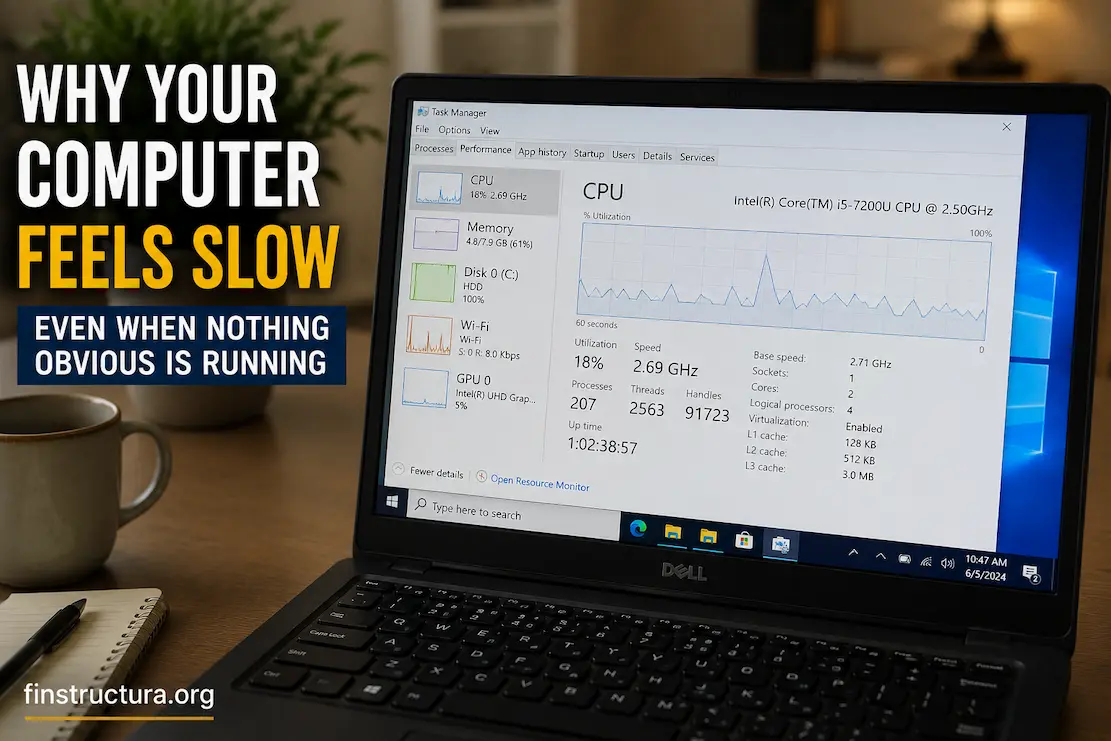
A computer can feel noticeably slower even when no single program appears to be using an unusual amount of CPU or memory. You may open Task Manager, glance at the numbers, and find nothing that immediately explains why opening folders takes longer, windows hesitate to appear, or switching between applications feels less responsive than it used to. That does not necessarily mean the computer is healthy just because the usage percentages look reasonable at one particular moment.
The more useful question is what kind of slowness you are actually experiencing. A system can become sluggish because memory is under pressure, storage operations are taking too long, background activity comes in short bursts, temperatures are causing the processor to reduce its speed, or a particular component has gradually become a bottleneck. Microsoft also identifies limited storage, startup applications, outdated software and aging hardware among the factors that can contribute to poor Windows performance. (Microsoft Support)
Instead of randomly disabling services or installing a collection of “PC optimizer” tools, it is better to narrow the problem down. The goal of troubleshooting is not simply to make a number in Task Manager look lower; it is to find the condition that changes when the computer becomes slow and then determine whether that condition is actually responsible.
Start by Defining What “Slow” Means
“Slow” can describe several different experiences, and they do not necessarily have the same cause. If Windows takes a long time to become usable after you sign in, startup activity deserves attention. If applications open slowly but the desktop itself feels normal, storage or application behavior may be more relevant. If everything becomes sluggish only after several hours, memory pressure, background tasks, thermal conditions or a process that gradually accumulates resources become more interesting possibilities.
This distinction is useful because it prevents you from treating every performance complaint as a CPU problem. A computer with a processor sitting at moderate utilization can still feel sluggish if it is repeatedly waiting for storage or struggling to keep enough working data in memory. Windows provides Task Manager specifically to inspect CPU, memory, disk and network activity, but the important part is observing those resources while the slowdown is happening, not only after the computer has recovered. (Microsoft Support)
A quick way to describe the symptom
Before changing anything, notice which of these best matches your experience:
| What you notice | What it may point toward |
|---|---|
| Windows takes longer to become usable after sign-in | Startup or background activity |
| Programs take a long time to open | Storage, memory or application activity |
| The whole system pauses briefly | Resource spikes, storage latency or memory pressure |
| Slowness appears after extended use | Background process, memory pressure or heat |
| Only one application is affected | Application-specific problem |
| The fan becomes loud during slow periods | CPU/GPU load or thermal limits |
| Files and folders respond slowly | Storage activity or drive problems |
These are starting clues, not diagnoses. For example, a loud fan does not automatically mean the processor is faulty, just as high disk activity does not automatically mean the drive itself is failing. The value of the observation comes from comparing it with what else is happening at the same time.
Look at Task Manager While the Problem Is Happening
Task Manager is one of the most useful first checks because it gives you a view of active processes and major system resources without requiring additional diagnostic software. Press Ctrl + Shift + Esc to open it, then look at the Processes and Performance sections. Microsoft specifically recommends using Task Manager to examine CPU, memory and disk usage when investigating slow performance. (Microsoft Support)
The mistake is to open Task Manager after the computer has already returned to normal and assume the displayed percentages explain what happened five minutes earlier. A short spike may have disappeared completely by then. Instead, leave Task Manager open when you expect the slowdown and watch what changes when you reproduce the problem. If opening a particular program causes disk activity to jump, for example, that is more useful evidence than seeing the same disk at a low percentage while the computer is idle.
CPU usage is only part of the story
A common assumption is that a slow computer must have a process consuming nearly all of the CPU. Sometimes that is true, but a processor does not need to remain at 100% utilization for a system to feel slow. A task can be waiting for another resource, or the processor may be working normally while storage operations or memory pressure delay the next step.
If CPU usage rises sharply at exactly the moment the computer becomes sluggish, sort the Processes list by CPU and observe which process rises with it. If no process shows a meaningful change, don’t keep searching for a mysterious CPU-heavy application. Move your attention to memory, disk activity and the conditions under which the slowdown occurs.
Memory Pressure Can Be Harder to Spot
RAM is where Windows and applications keep data they need to access quickly. Microsoft explains that RAM is faster than disk storage and that having more memory allows a computer to handle more simultaneous work before slowdowns occur. (Microsoft Support)
What makes memory-related slowdowns confusing is that closing one application may temporarily make the computer feel better without revealing the underlying pattern. A browser with many tabs, an editor, a communication application and several background programs can collectively create memory pressure even when none of them looks particularly extreme on its own. When available physical memory becomes limited, Windows has to manage memory more aggressively, and some operations may become noticeably less responsive.
If the computer becomes progressively slower as you open more applications, watch the Memory section in Task Manager during that progression. The useful observation isn’t just that “memory is high.” Ask whether the slowdown begins as memory becomes increasingly constrained and whether closing a substantial application changes responsiveness. If it does, you have a much stronger clue than a generic recommendation to “free up RAM.”
Your Storage Drive Can Be the Bottleneck Without Looking Full
Storage is another area where the obvious indicator can be misleading. A drive does not have to be completely full for storage operations to contribute to poor performance, and a drive showing modest overall activity at one moment may still be responsible for delays at another. Microsoft notes that running low on storage can affect performance and recommends freeing space when a Windows device is low on storage. (Microsoft Support)
There is also a difference between how much work a drive is doing and how long individual operations take. A storage device may be busy handling many small requests even when the amount of data it transfers does not look impressive. Microsoft’s Windows performance documentation specifically treats disk latency and process-level I/O as useful measurements when investigating storage-related bottlenecks. (Microsoft Learn)
If folders hesitate to open, programs take unusually long to launch, or the system pauses while reading and writing files, watch Disk activity at the same time. If the disk becomes busy whenever the slowdown appears, identify which process is generating the activity before deciding what to change. That distinction matters because the storage device may simply be responding to another process performing indexing, synchronization, updating, scanning or file operations.
Don’t confuse a full drive with a failing drive
A nearly full drive deserves attention, but available space alone does not prove that the hardware is defective. Likewise, moving to an SSD may dramatically improve an older computer while doing nothing to address a separate problem caused by an application or memory limitation.
If you are seeing repeated freezes, unusual file errors, disappearing files or other signs that go beyond ordinary sluggishness, treat those symptoms separately from routine performance tuning. Performance troubleshooting should not become an excuse to ignore possible hardware or data-integrity problems.
Background Work Often Happens in Short Bursts
Some of the most frustrating slowdowns are caused by activity that is hard to catch because it is not high for long. Windows updates, application updates, cloud synchronization, security scans, indexing and other maintenance operations can create bursts of CPU, memory or disk activity. By the time you open Task Manager and look for the culprit, the activity may already have subsided.
This is why the timing of the problem matters. If the computer becomes sluggish at roughly the same time every day, shortly after startup, whenever you connect an external drive, or when a particular application opens, write that pattern down. Repeated timing gives you something concrete to investigate rather than leaving you with the vague conclusion that “Windows is slow.”
Windows also provides startup controls that can help identify applications launching automatically. Microsoft recommends reviewing startup applications as part of performance troubleshooting, while its clean-boot process can be used to isolate whether third-party startup items or services are contributing to a problem. (Microsoft Support)
When the Computer Gets Slower After Running for Hours
A computer that performs normally immediately after a restart but gradually becomes sluggish deserves a different investigation from one that is slow from the moment you turn it on. The pattern can point toward a program that accumulates memory, a background process that becomes increasingly active, a workload that grows over time, or thermal conditions that appear only after sustained use.
Temperature is particularly easy to overlook because it doesn’t necessarily show up as a dramatic CPU percentage. A processor can reduce its operating performance when thermal conditions become unfavorable, meaning that the computer may become slower while the workload itself does not appear unusually large. Microsoft lists frequent fan activity and longer task completion among signs that can accompany an aging or declining PC, although these symptoms alone do not establish a particular hardware fault. (Microsoft Support)
If the slowdown follows a predictable period of heavy use, compare the machine immediately after startup with the same workload later. Notice whether the fan behavior, responsiveness and resource usage have changed. That before-and-after comparison is more informative than changing several settings at once because it gives you a baseline.
Check What Changed Before the Slowness Started
Sometimes the most useful troubleshooting information is not a Task Manager percentage at all. Think about what changed shortly before the problem appeared. A new application, driver, Windows update, hardware accessory, browser extension, security product or storage device can provide an important starting point.
You don’t need to assume that the newest change is automatically responsible. It is simply a useful lead. If the computer was responsive for months and became noticeably slower immediately after a particular change, compare the timing with your symptoms and investigate that change first. This is especially useful when the slowdown is consistent and reproducible.
A clean boot can help isolate third-party software when ordinary observation isn’t enough. Microsoft’s procedure temporarily starts Windows with a reduced set of services and startup programs so you can determine whether the problem disappears under that simplified environment. Microsoft cautions that changing advanced system configuration incorrectly can cause problems, so this approach is better suited to deliberate troubleshooting than casual experimentation. (Microsoft Support)
Don’t Disable Windows Services Just Because They Look Unfamiliar
A common piece of advice on performance websites is to open the Services application and disable anything that sounds unnecessary. That approach can create more problems than it solves. Windows services often have dependencies or perform functions that aren’t obvious from their names, and reducing the number of running services is not automatically equivalent to improving performance.
The same principle applies to startup applications. If you identify an application you don’t need launching with Windows, disabling its startup behavior can be reasonable. But first, understand what the application does and keep track of changes so you can reverse them if necessary. Microsoft’s clean-boot guidance similarly recommends that you keep track of disabled items so you can restore them after testing. (Microsoft Support)
A safer troubleshooting rule is: change one meaningful thing, observe the result, and keep a record of what you changed. If five settings are modified at once and the computer improves, you still don’t know which change mattered. If the problem comes back later, you still won’t know what needs restoring.
A More Reliable Way to Narrow Down the Cause
If the cause still isn’t obvious, stop looking for a single “slow computer” switch and work through the system by resource. Windows performance troubleshooting documentation uses the same general idea: break the system into logical areas such as CPU, memory, storage and network, then correlate activity with the problem rather than treating the machine as one undifferentiated component. (Microsoft Learn)
Start with the behavior you can reproduce. Open the application or perform the task that normally feels slow, then watch what changes. If CPU activity rises with a particular process, investigate that process. If memory becomes constrained as applications accumulate, investigate the workload and memory capacity. If storage activity or latency rises when the system pauses, identify the process generating the I/O. If none of these changes, consider whether the problem is application-specific, hardware-related, thermal or caused by something outside the computer itself.
This approach takes slightly longer than downloading an optimizer, but it produces information you can use. Even when it doesn’t immediately fix the computer, you finish the investigation with a much clearer understanding of what is happening.
A simple troubleshooting sequence
Use the following order when the cause isn’t obvious:
- Reproduce the slowdown instead of testing only while the computer is idle.
- Watch CPU, Memory and Disk together in Task Manager.
- Identify what changes at the exact moment responsiveness drops.
- Check whether the same behavior occurs after a restart.
- Compare one affected application with another if the problem appears application-specific.
- Look for recent changes if the problem began suddenly.
- Use a clean boot when appropriate to isolate third-party startup software.
- Escalate to hardware or system diagnostics when the evidence points beyond normal software activity.
The order matters because it keeps you from making destructive changes before you understand the symptom.
When the Problem May Be the Computer’s Age
Not every slow computer has a software problem waiting to be resolved. Older hardware can simply reach a point where modern applications and operating-system workloads demand more than the machine comfortably provides. Microsoft lists aging hardware, low storage, longer startup times and consistently high CPU, memory or disk usage among signs that a PC may be reaching the limits of what it can comfortably handle. (Microsoft Support)
That doesn’t mean you should immediately replace a computer because it feels slower than it once did. First determine whether the limitation is specific and addressable. Adding memory, replacing an older mechanical drive with an SSD, reducing unnecessary startup activity or resolving a particular application problem can sometimes make a meaningful difference. But if the processor, memory capacity, storage, and other hardware are all consistently limiting the workloads you actually need, software tweaks will have less and less effect.
The useful question is therefore not “How do I make this old computer fast?” It is “Which component is limiting the tasks I need to perform?” That question leads to a much more sensible decision about whether to adjust software, upgrade hardware or eventually replace the machine.
What You Shouldn’t Do First
When a computer becomes frustratingly slow, it’s tempting to make several changes at once. That usually makes diagnosis harder. Avoid registry-cleaning utilities, indiscriminately disabling Windows services, deleting unfamiliar system files, changing advanced virtual-memory settings without a specific reason, or installing several optimization programs simply because they promise instant performance improvements.
You should also be careful with advice that gives universal percentage thresholds as if they were diagnoses. Seeing 80% memory usage or 70% CPU usage does not, by itself, prove that the corresponding component is the cause of a slowdown. What matters is the relationship between resource activity and the behavior you’re experiencing.
A better approach is to preserve the computer’s normal configuration while you gather evidence. If a change becomes necessary, make one controlled change, test the same workload again, and record the result. This turns troubleshooting into a process you can learn from instead of a sequence of guesses.
FAQs
1. Why is my computer slow with low cpu usage in task manager?
Low CPU utilisation does not exclude other bottlenecks. The computer could be waiting on storage, handling limited available RAM, have short-lived activity that you missed, or have an issue inside a particular application. Watch CPU, memory and disc activity as you duplicate the slowness, instead of a single snapshot.
2. Does insufficient storage capacity actually make a computer feel slower?
Yes. Microsoft says running low on storage can slow down performance, and can potentially interfere with Windows upgrades. But little free space is just one possible reason. In case there’s lots of free space on the drive, check for real disc activity and latency and not just think it’s a storage capacity problem.
3. What starting apps should I disable to make Windows faster?
Reducing superfluous start-up activity can assist, especially if multiple apps start automatically and continue to run in the background. Microsoft suggests troubleshooting performance by evaluating startup apps.Don’t disable everything at launch, just programs that you know and don’t need to start automatically.
4. Why does rebooting my computer fix the problem for a little while?
Restarting flushes the current operating session and kills processes that could have been using resources or stalled. But if the improvement is short-lived then that is good evidence, not a permanent solution. Be careful what you open and what happens between the time you resume and the time things slow down again; a repeated pattern may point to the root reason.
5. When is it time to just replace the computer instead of troubleshooting?
When the hardware is continuously struggling with the things you need it to do and reasonable upkeep or targeted enhancements don’t give you enough of a boost, consider replacement. If the computer is also showing recurring hardware defects, failing storage, unsupported software, or other reliability issues, it may make more sense to replace it than to keep trying to optimise it. Microsoft also points to chronic performance problems, slow startup times, and ageing hardware as signals that a PC is reaching the end of its usable performance life.
Conclusion
When you stop thinking of “slow” as a diagnostic, it’s easier to debug a slow machine. Similar symptoms can be caused by CPU, RAM, storage, background activity, application behaviour, heat and ageing hardware but the right cure for one can be totally unrelated to another.
So the most useful initial step is simple: replicate the situation and see what changes when it happens. Task Manager may provide the first insights. If the cause is not evident, startup controls, clean-boot tests, and more thorough Windows performance tools can help. Microsoft’s own performance guidance takes this resource-by-resource approach, instead of a one-size-fits-all repair.
If you can identify the resource or condition that varies with the slowdown, then you are no longer in the dark. That next step can be to remove unneeded background activity, free storage, look at memory constraints, investigate an application, examine thermal behaviour, look at the drive, or accept that the hardware itself has become the limiting factor. It’s a considerably more dependable technique to upgrade a machine than trying a lengthy list of modifications and hoping that one of them works.
Continue using AI Cursor?Keep it onTurn Off

Daniel Mercer writes about everyday technology problems, including computer and network troubleshooting, device care, software and apps, digital organization, and online privacy. He focuses on practical explanations that help readers understand what may be causing a problem before changing settings or replacing equipment. Daniel prefers clear, straightforward guidance over unnecessary technical jargon and aims to make technology easier to understand for everyday users. His work appears across FinStructura’s five main content areas.