
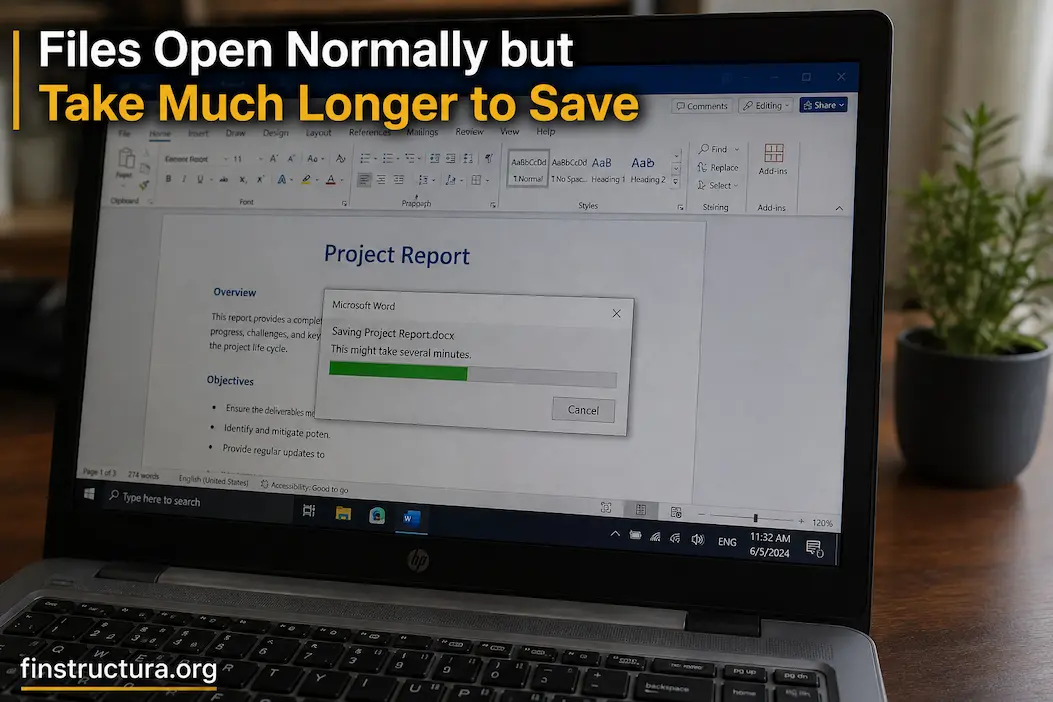
Opening a file that suddenly saves slowly can be confusing. If a document, spreadsheet, image, or project file opens quickly, the storage disc is likely operating. After saving a modification, the application may freeze, sit on a progress indication, or take several seconds longer. The difference between reading and writing a file can show the issue.
Opening and saving are not the same. The application may need to create a temporary file, write new data, verify it, replace the original file, update metadata, synchronise with another service, or wait for security software to examine the writing. This makes opening a file fast but saving unusually slow.
Affected files and their locations should be identified first. If all files are saving slowly, please verify the computer or storage. Location may matter if only one folder’s files behave this way. If the delay occurs only when saving to a network drive or cloud-synchronised folder, the storage path may matter more than the program.
Watch Saved Happenings
Before making any changes, save several files and analyse the trend. A 500 MB video project that takes longer to develop is different from a simple text document that saves fast but now takes 10 seconds. Check if the app freezes or takes longer to finish. If the window is usable but the save indicator stays on, the app may be waiting for storage or another service. If the application freezes during saving, the write action may be obstructing other activity. Try saving a new and existing file. New files save rapidly, but existing files take longer to overwrite. The problem may be the original file’s location, rights, synchronisation state, or the application’s replacement process.
Storage Location Changes Everything
File saving location is an easy cause to overlook. Internal drive files follow a different path than USB drives, network locations, cloud folders, external SSDs, and detachable storage devices. When opening a network file, some of its data may be cached locally, accelerating the process. The updated data must return to the remote location and acquire confirmation before saving. Cloud-synchronised folders can behave in a similar way. Depending on the program, the application may write the local copy immediately while synchronisation continues, or the save process may wait for synchronisation to complete.
Quick comparisons can narrow the scope. Please transfer the affected file to a normal folder on the computer’s internal storage and make a small change. The local copy saving normally while the original site remains delayed strongly suggests that the application is not the issue. Network, cloud, external drive, or permissions from the originating place become increasingly important. Due to modifying only one important variable—storage location—this diagnostic method is safer than changing system settings.
Cloud Sync Can Slow Saving
Cloud storage providers synchronise files across devices, but this can degrade the saving experience. When you save a document in a synchronised folder, the application writes the change, and the synchronisation service can examine, upload, compare, or reconcile it. The process may take longer than saving a local file if the internet is slow or the service is busy. This is particularly obvious with giant files. A short document may synchronise instantaneously, but an edited film, database, archive, or large design project may need to upload data again. Before presuming the storage disc is failing, check the cloud application’s synchronisation status. Saving may appear weird if it shows pending uploads, conflicts, problems, or a halted connection.
Files Can Be Easy to Read but Hard to Rewrite
Files are often opened by reading enough data for the application to display. Saving takes more effort. Not all apps change a few bytes in the file. They may construct a new version, write the full document to a temporary location, compress, rebuild internal indexes, and replace the old file. This is important for complex file types. When saved, a large presentation, spreadsheet, database, image project, or application-specific project file may have many internal components that must be reorganised. Saving a file takes longer than opening it, but that doesn’t indicate the storage device is slow. The app’s save process may have become harder.
Check if Problem Follows Application
Try storing separate files in different apps. A document editor that saves slowly but a basic text editor that saves instantaneously may not be a storage issue. When multiple unrelated apps take a long time to store files to the same drive, the storage path becomes suspicious. This comparison helps you avoid blaming the computer for one application’s behaviour. Complex applications may contain unique plugins, temporary-file systems, backup features, cloud integration, and document-recovery mechanisms.
A useful comparison
| What you test | If saving is slow | What it suggests |
|---|---|---|
| Same file, local drive | Less likely to be the application | Original storage location matters |
| Different file, same application | Still slow | An application-level issue is possible |
| Different application, same drive | Still slow | A storage or system issue becomes more likely |
| Small files and large files | Only large files slow down. | File size or write workload matters |
| Local files vs cloud files | Cloud files slow | Synchronization or networks may be involved |
| Internal drive vs external drive | External drive slow | A drive, cable, port or enclosure may matter |
You don’t need to perform every test. Choose the comparison that matches the symptom you’re seeing.
Antivirus Software May Inspect the File After It Changes
Security software can monitor files as you create or modify them. This is useful protection, but it also means that a save operation may involve more than the application and storage device. When you save a file, security software may inspect the new or modified data. Large files, archives, executables, downloaded content, or files stored in heavily monitored locations can sometimes take longer to process. If the delay started after installing or changing security software, that timing is worth investigating. Check whether the security product reports an active scan or unusually high resource usage. Don’t permanently disable antivirus protection just to make saving faster. If a controlled diagnostic test suggests that security scanning is contributing to the delay, use the security product’s documented settings or support guidance rather than leaving the computer unprotected.
Low Free Space Can Affect Saving
A drive does not need to be completely full before storage-related problems appear. Applications may need temporary space while saving, and the operating system also needs room for its own operations. A file that is only a few hundred megabytes may require additional temporary space during the save process. Some applications create a temporary copy before replacing the original, meaning the required working space can be considerably larger than the visible change in the document. Check the available space on the drive where the file is being saved. If the drive is nearly full, freeing some space and repeating the same save operation is a worthwhile test. This is particularly important when working with large media files, virtual machines, archives, databases, or applications that maintain extensive temporary data.
External Drives Introduce More Variables
If the affected files are stored on an external drive, test a local copy before assuming the drive itself is defective. USB cables, ports, external enclosures, power management, and the drive’s own condition can all influence write performance. A drive may still be perfectly capable of reading existing files while becoming unreliable or slow when writing changes. Try another USB port if appropriate, and avoid using a questionable hub during testing. If the drive behaves normally when reading but consistently becomes slow during writes, pay particular attention to its health and connection. Don’t repeatedly force-save or disconnect an external drive while it is struggling to write. If the system is actively saving, interrupting the operation can create data loss or file corruption.
A Nearly Full or Aging SSD Can Behave Differently Under Writes
Solid-state drives are generally fast, but their write behaviour can change depending on the available free space, workload, drive design, and condition. Some SSDs use temporary high-speed caching that makes short writes appear extremely fast. Once that cache is exhausted during a larger operation, sustained write speed can fall significantly. That means a file may open quickly and small changes may sometimes save rapidly, while larger or repeated saves become noticeably slower. If the problem affects many applications and files on the same drive, check the drive’s available space and health using reputable tools appropriate for the operating system and hardware. Avoid relying on a single benchmark to determine whether the drive is healthy; real-world behaviour and diagnostic information are more useful when considered together.
Traditional Hard Drives Have Their Own Warning Signs
If the computer still uses a mechanical hard drive, slow saves can have a different explanation. Hard drives have moving components and can become increasingly slow when handling fragmented data, heavy simultaneous workloads, or sectors that take longer to read or write. A drive that makes unusual clicking, grinding, repeated seeking sounds, or frequent pauses deserves particular caution. If you store important files on a drive that shows signs of physical failure, back up the data before experimenting. Troubleshooting a failing drive should not begin with actions that put additional stress on the storage device or risk losing the only copy of important information. A slow save operation can sometimes be an early warning rather than merely an inconvenience.
Temporary Files Can Become Part of the Problem
Many applications use temporary files during saving. If the temporary-file location is on a slow, nearly full, synchronised, or problematic drive, the save operation can become slower, even if the final file is stored somewhere else. This is one reason an application can behave differently from another application on the same computer. Different programs may use different temporary directories and saving strategies. If the problem is limited to one application, check its documented storage, backup, recovery, and temporary-file settings before changing system-wide temporary directories. Avoid deleting random temporary folders simply because they contain large files. Some applications actively use temporary data, and deleting it while they are running can create additional problems.
File Permissions Can Cause Delays Too
Permissions usually produce a clear error rather than a long delay, but they can sometimes become relevant when applications are trying to save files to protected locations, network shares, or synchronised folders. If a file can be opened but takes unusually long to save, verify whether the same operation works in a normal user-owned folder. Don’t solve permission problems by running every application as administrator. That can hide the underlying issue and can create unnecessary security risks. Instead, determine whether the location is supposed to be writable by your account and whether another process or service controls the folder.
Network Drives Can Make the Difference Obvious
A file stored on a network drive may appear to behave almost like a local file until you perform a write operation. Saving requires the computer to communicate with another machine, storage appliance, or server. Network congestion, server load, authentication, connection quality, file locking, or latency can all affect how quickly the operation completes. If the file saves quickly when copied to the internal drive but slowly when stored on the network location, focus your investigation there. If other users are experiencing the same delay at the same network location, the problem is even less likely to be your computer.
File Locking Can Delay a Save
Some applications and services monitor files for changes. Backup software, synchronisation tools, document-management systems, indexing services, and other applications may temporarily access a file while you’re trying to save it. In some cases, the application has to wait for another process to release a file or complete an operation. This can be particularly noticeable with files stored in shared folders or locations monitored by several services. If the delay appears only for files in one particular folder, check what software is watching that location. The goal isn’t to disable every monitoring service, but to identify whether another process is repeatedly interacting with the file.
File Size and Complexity Matter
A document can look simple while containing a surprising amount of internal information. Spreadsheets may contain formulas, linked data, formatting rules, embedded objects, and hidden content. Presentations can contain large images and media. Design projects can contain layers and assets that the application rebuilds during saving. If the problem occurs only with larger or more complex files, compare their size with a small test file created in the same application. If small files save immediately but complex files take much longer, the application’s save process or the file’s internal structure becomes a stronger suspect than a general computer problem. This is also a useful reason not to judge storage performance based on one document alone.
Try Saving a Copy With a New Name
If an existing file takes a long time to overwrite, save a copy with a different filename in the same folder. This test can help distinguish between problems associated with the existing file and problems associated with the location itself. If the new copy saves quickly while overwriting the original remains slow, the original file may have something unusual about its structure, permissions, locking state, or application-specific metadata. If both operations are equally slow, look more closely at the storage location, application, security software, or underlying drive.
Don’t Ignore Recent Changes
Think about what changed shortly before the problem began. Did you install a new antivirus program? Add a synchronisation service? Move files to another drive? Update the application? Change where documents are stored? Connect a network drive? The timing doesn’t prove that a particular change caused the problem, but it gives you a useful starting point. Troubleshooting becomes much more efficient when you investigate changes rather than randomly applying fixes. If saving was normal yesterday and became slow immediately after moving the folder into a cloud-synchronised directory, the storage location deserves attention before you start repairing the operating system.
When the Problem Is Probably Not the Drive
A slow save does not automatically mean that your SSD or hard drive is failing. If only one application is affected, files on other drives save normally, the system reports a healthy status, and the problem follows one particular file type, an application-level issue is more plausible. Likewise, if saving becomes slow only while synchronisation is active, the cloud service is a more relevant suspect than the physical drive. This distinction matters because replacing hardware is an expensive response to a problem that could have been caused by a plugin, extension, synchronisation service, or application setting.
When Storage Health Becomes a Serious Concern
Storage deserves more attention when slow saving occurs alongside other unusual behaviour.
Watch for:
- Files taking increasingly longer to open or save
- Unexpected read/write errors
- Applications freezing during storage operations
- Files becoming corrupted
- The drive occasionally disappearing
- Unusual noises from a mechanical drive
- Operating-system warnings about the storage device
- Multiple unrelated applications experiencing write delays
If several of these symptoms appear together, make sure you back up important data before spending days experimenting with settings. A storage device can sometimes continue working while its condition deteriorates, so having a current backup is more valuable than trying to prove exactly what is wrong before protecting the data.
A Better Way to Troubleshoot the Delay
The most useful approach is to change one variable at a time. Start by saving the same file to a different location on the internal drive. If that is fast, please compare the original storage location. If it is still slow, try another file in the same application. Then compare another application and, if necessary, check whether security or synchronisation software is active. At each step, ask what the result actually tells you. A test is not valuable simply because it is another “fix”. It is valuable when it removes one possible explanation. That approach also reduces the risk of making unnecessary system changes that create new problems while you’re trying to solve the original one.
Slow Saving Is a Clue, Not a Diagnosis
When files open normally but take much longer to save, the difference between reading and writing is the most useful clue. The storage device may be involved, but it is only one possibility. The application, cloud synchronisation, network location, security software, file structure, temporary storage, permissions, and background services can all affect what happens when you press Save.
Start with the simplest comparison: save the same file somewhere local. From there, compare another file, another application, or another storage location depending on what you discover. If the problem follows the location, investigate that location. If it follows the application, investigate that application. If it follows the computer across different applications and files, storage and system-level causes become more important.
Most importantly, protect important data before performing aggressive troubleshooting if the computer is showing other signs of storage trouble. A slow save is inconvenient, but a pattern of slow saves, combined with errors or disappearing files, can be an early warning that deserves attention rather than just another routine restart.
FAQs
1. Why does my file open quickly but save slowly?
Opening and saving involve different operations. Saving may require the application to create temporary files, rewrite substantial portions of the document, scan the changed data, synchronise it to another location, or replace the original file. A fast opening operation therefore doesn’t prove that writing to the storage location is equally healthy.
2. Why are files slow to save only in one folder?
The folder may be on a network drive, cloud-synchronised storage, an external drive, or another location monitored by security or backup software. Try saving the same file to a normal local folder. If the delay disappears, investigate the original location rather than the application first.
3. Can OneDrive or another cloud service make saving slow?
Yes. Synchronisation adds another stage to working with files. Depending on the application and service, changes may need to be processed, synchronised, uploaded, or reconciled after a local save. Check the service’s synchronisation status when the delay occurs.
4. Does a nearly full SSD make files slower to save?
It can contribute to slower write behaviour, depending on the drive and workload. Applications may also need temporary working space during a save. If the drive has very little free space, freeing some room is a sensible troubleshooting step.

Daniel Mercer writes about everyday technology problems, including computer and network troubleshooting, device care, software and apps, digital organization, and online privacy. He focuses on practical explanations that help readers understand what may be causing a problem before changing settings or replacing equipment. Daniel prefers clear, straightforward guidance over unnecessary technical jargon and aims to make technology easier to understand for everyday users. His work appears across FinStructura’s five main content areas.