
Start by Understanding What Your Email Account Controls
A common mistake beginners make is treating email simply like any other online service. Your inbox can become a gateway to many other accounts, as password reset emails and security alerts are often sent there. If someone gains access to your email account, they could request password changes for online stores, social media, cloud storage, or other services linked to that address.
That is why email requires stronger security than accounts you use less frequently. The US Federal Trade Commission (FTC) explains that compromised email accounts can be used to obtain password reset links for other accounts, thereby giving attackers control over them.
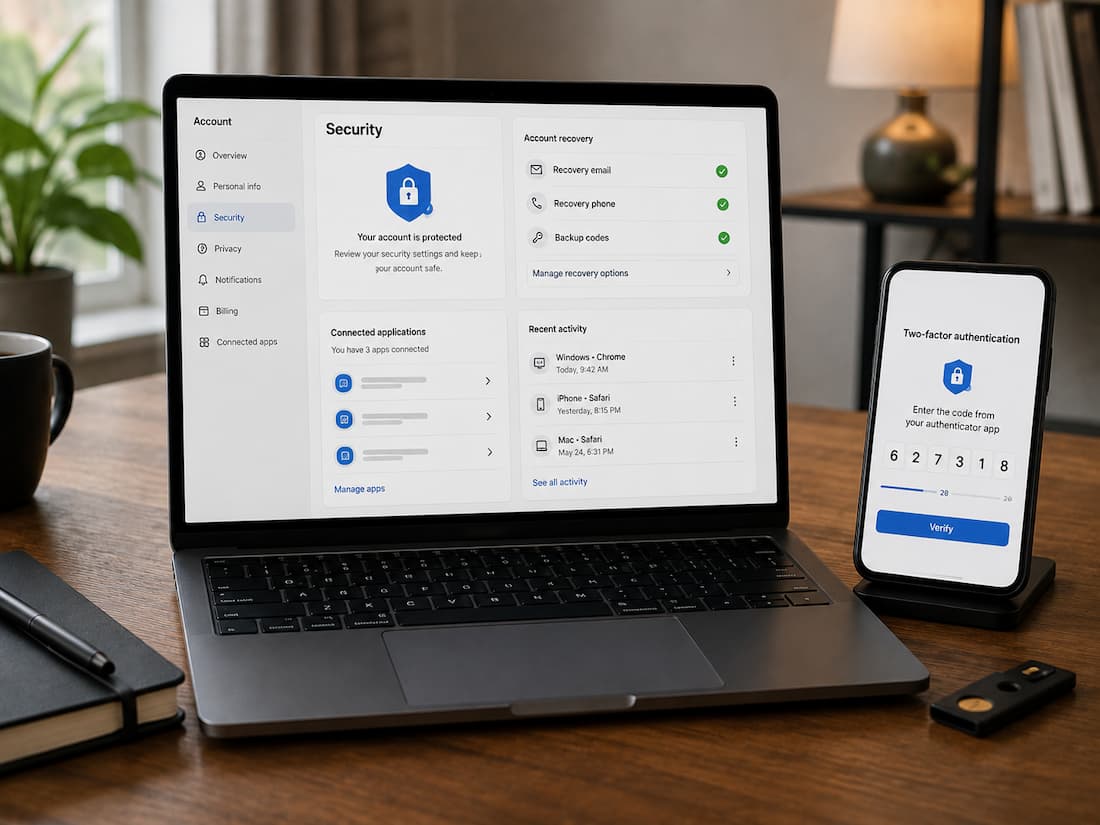
Before making any changes, take a moment to review the contents of your accounts. Check your recovery email addresses and phone numbers, recent login activity, linked applications, forwarding settings, filters or rules, and the devices where you are currently logged in. While the exact names may vary by email provider, the goal is generally the same: to identify which accounts have access and remove anything you no longer recognize or need.
This review is also an effective way to protect your privacy. It helps address situations where your email address is still being retained—even if you stopped using a particular online store, newsletter subscription, mobile app, or online service years ago. You cannot always delete previously collected information, but you can prevent the leakage of new, unnecessary data.
Strengthen the Login Before Adjusting Privacy Settings
Your email password should be unique to your email account. Reusing the same password on several websites creates a simple chain of risk: if one service suffers a breach and your password is exposed, someone may try those same credentials elsewhere. The FTC specifically recommends using unique passwords and notes that password reuse makes it easier for stolen credentials to be used against other accounts.
If remembering many passwords is difficult, a reputable password manager can generate and store unique passwords for you. The goal is not to create an elaborate password that you will forget tomorrow. The goal is to use a different, sufficiently long credential for email and avoid predictable information such as names, birthdays, addresses, or familiar number sequences.
Then enable multi-factor authentication if your email provider offers it. MFA requires more than just your password when you sign in, so a stolen password alone is less useful to an attacker. The FTC recommends stronger methods such as authenticator apps or security keys when available, while noting that text-message verification can still provide additional protection when better options are unavailable.
Do not treat verification codes as information that customer support, friends, or technical helpers are entitled to receive. A code is part of the mechanism proving that you control the account. The FTC warns that scammers may impersonate trusted people or organizations specifically to persuade victims to hand over these codes.
Review Recovery Options Before You Need Them
Account recovery is often ignored until something goes wrong. That is exactly when an outdated recovery phone number or inaccessible backup email becomes a serious problem. Open your email account’s security settings and check every recovery method listed there.
Remove recovery information that no longer belongs to you or that you can no longer access. If an old phone number is still attached to the account, for example, it may be useless when you actually need to recover the account. At the same time, do not remove a working recovery method simply because you want fewer details stored on the account. Recovery information has a legitimate security purpose.
Some services also provide recovery codes when you enable multi-factor authentication. Store these codes somewhere secure and separate from the device you normally use to sign in. If your phone is lost, damaged, or unavailable, recovery codes may provide another route back into the account. NIST’s current digital identity guidance recognizes recovery codes and recovery contacts as established approaches to account recovery.
A useful rule is simple: every recovery method should be both intentional and accessible. If you cannot explain why a phone number, backup address, device, or recovery method is attached to your email account, investigate it before leaving it in place.
Find and Remove Access You No Longer Need
Many email accounts become crowded with connected services over time. You might authorize an application to read or manage certain account information for a particular purpose and then forget about it. Closing the application does not necessarily mean its permission has disappeared from your email account.
Look for a section called something like “Connected apps,” “Third-party access,” “Authorized applications,” or “Apps and services.” Review each entry carefully. If you recognize a service but no longer use it, revoke its access. If you do not recognize an application at all, investigate it through your provider’s official security page before deciding whether to remove it.
Revoking access is different from deleting an account on another website. Removing permission prevents future access through that authorization, but it does not automatically erase information the third party may already have collected. If privacy is your goal, you may also need to visit the third party’s account settings or privacy controls and request deletion where that option is available.
This is one of the easiest areas to overlook because connected services can remain invisible during normal email use. You might read and send messages every day without ever noticing that an old application still has account permissions.
Check Forwarding, Filters, and Automatic Rules
Email forwarding deserves special attention because it can quietly send incoming messages somewhere else. If you deliberately forward work messages to another mailbox, that may be perfectly reasonable. An unfamiliar forwarding address is a different matter and should be investigated immediately.
The same applies to filters and automatic rules. Some are useful for organizing newsletters or receipts, but rules can also move messages, delete them, mark them as read, or forward them automatically. After an account compromise, an attacker may create rules that hide security alerts or redirect valuable messages while leaving the mailbox looking normal.
The FTC specifically recommends checking email settings for forwarding rules after an account has been compromised and deleting rules that you did not create. It also recommends reviewing sent and deleted folders for activity that does not belong to you.
Even if you have never suspected an account takeover, reviewing these settings occasionally is worthwhile. It gives you a better understanding of how your inbox works and makes unexpected changes easier to spot later.
Reduce the Personal Information You Share Through Email
Email privacy is not only about stopping hackers. It also involves deciding how much personal information you voluntarily attach to your email account and the messages you send. Your address may be requested for newsletters, discount offers, downloads, event registrations, product warranties, account creation, and countless other purposes.
That does not mean you should refuse every request for an email address. Instead, consider whether the service genuinely needs your primary address. A secondary address can be useful for newsletters, shopping notifications, promotional messages, or websites you expect to use only occasionally. Keeping these messages separate can make your main inbox easier to manage and reduce the number of services associated with your primary address.
Be equally careful with information contained inside messages and attachments. Avoid sending sensitive documents through ordinary email when a more appropriate secure sharing method is available. If you must send sensitive information, check whether the recipient and the service are appropriate before attaching anything.
It is also worth remembering that deleting an email from your inbox does not guarantee that every copy of the information has disappeared. Recipients may have their own copies, attachments may have been downloaded, and service providers may retain information according to their policies. Good email privacy therefore starts before you press Send.
Learn to Spot Messages That Are Trying to Take Control
A well-protected account can still be compromised if you voluntarily give a scammer your credentials. Phishing messages often imitate banks, delivery companies, streaming services, workplaces, or familiar online platforms and create a reason for you to sign in quickly.
A message might claim that your account has been suspended, a payment failed, a package cannot be delivered, or suspicious activity was detected. The purpose is usually to move you from reading an email into clicking a link and entering information on a fraudulent page. The FTC recommends avoiding unexpected links and attachments and contacting the organization through a website or phone number you already know to be legitimate.
Do not judge a message solely by its appearance. A familiar logo, professional formatting, or convincing language does not prove that the message is genuine. When an email asks you to change a password, verify payment information, or provide a security code, stop and access the service directly rather than using the link supplied in the message.
A useful habit: treat unexpected requests for passwords, verification codes, payment details, or personal information as something to verify independently before responding.
That small pause can prevent a large problem. Recent FTC guidance has also warned about phishing messages disguised as ordinary invitations, showing how scammers can use familiar everyday situations to request email credentials or verification codes.
Keep Your Account Under Control Over Time
Email security is not a setting you configure once and forget. Accounts accumulate old devices, applications, subscriptions, recovery methods, and permissions as your online life changes. A short review every few months can catch changes that would otherwise remain unnoticed.
When you stop using an application, consider removing its account access. When you replace a phone number, update your recovery information. When you sell or give away a device, sign out of your email account and remove the device from your account’s trusted-device list if the provider offers that option. When you receive a security alert, investigate it rather than automatically dismissing it.
Software updates matter here too. Security fixes are regularly delivered through operating system, browser, and application updates, and the FTC recommends keeping these systems updated.
If you ever believe someone has accessed your email, act promptly. Change the password from a trusted device, sign out other sessions where possible, enable MFA, review recovery information, inspect forwarding rules and account activity, and check connected applications. The FTC recommends these steps when recovering a compromised email or social media account.
The larger goal is not to make your email account complicated. It is to make its access understandable. You should know which devices are signed in, which recovery methods work, which applications have permission, where messages are being forwarded, and how you would regain control if you were locked out.
Final Thoughts
FAQs
1. Should I use my primary email address on all websites?
Not necessarily. Your primary email address is generally better suited for important accounts and for people you really need to reach. Secondary email addresses can be used for receiving newsletters, shopping information, promotional messages, and lower-priority registration details. While this does not make these services completely anonymous, it does reduce the amount of activity directly linked to your primary inbox.
2. Are authentication apps better than email-based CAPTCHAs?
If your account offers an authentication app as an alternative, it better isolates the authentication process from the email account itself. If your email account has been compromised, CAPTCHAs sent to that same account may not offer much additional protection. The US Federal Trade Commission (FTC) recommends using an authentication app or security keys, if available.
3. Should I delete old emails to improve my privacy?
Deleting unnecessary emails can reduce the amount of information in your inbox, but this should not be considered a complete privacy solution. Consider keeping only the data you truly need and deleting unnecessary personal information, old documents, and emails you no longer use.
4. What should I do if I see an unknown device on my email account?
If you do not recognize a device or session, carefully check the provider’s security information. If you are unsure whether the activity is legitimate, change your password, log out of other sessions, enable multi-factor authentication (MFA), and review your recovery details and account rules. If you suspect unauthorized access, take immediate action rather than waiting for further evidence.
5. Is collected information deleted when a linked app is removed?
No. Revoking an app’s access typically only limits future access to your account; it does not automatically delete information the service may already hold. If you wish to delete this information, check the service’s own account and privacy settings for deletion options.

Daniel Mercer writes about everyday technology problems, including computer and network troubleshooting, device care, software and apps, digital organization, and online privacy. He focuses on practical explanations that help readers understand what may be causing a problem before changing settings or replacing equipment. Daniel prefers clear, straightforward guidance over unnecessary technical jargon and aims to make technology easier to understand for everyday users. His work appears across FinStructura’s five main content areas.