
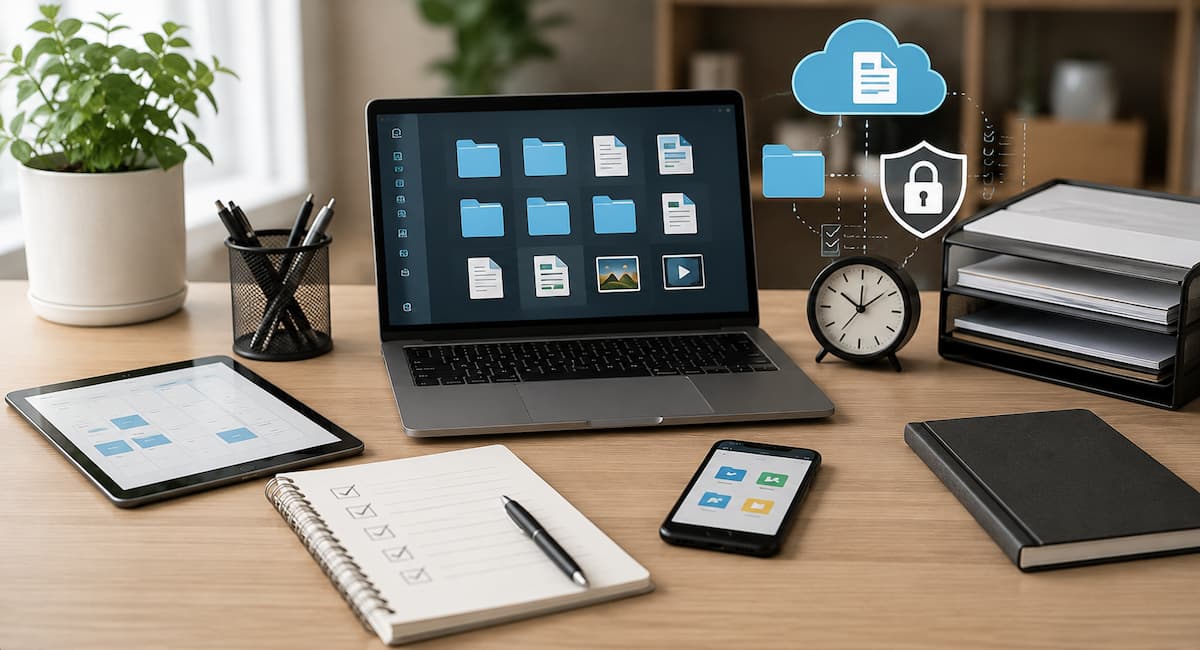
This guide explains how to build that system from the ground up. You will learn how to choose tools, organize digital information, manage tasks and calendars, reduce notification overload, improve account security, and create simple maintenance routines. Most importantly, you will learn how to make the system work with your normal habits rather than forcing your life to fit a complicated productivity method.
What a Digital Life Management System Actually Does
A digital life management system is simply a consistent way to handle the information and tasks that compete for your attention. Think of it as a set of rules for where different types of information belong. Your calendar holds appointments and events. Your task list holds actions you need to complete. Your file storage holds documents. Your notes hold information you may need later. Your email remains a communication channel instead of becoming your entire task manager.
The important word is consistent. If you save receipts in one cloud folder, another group of documents on your desktop, and important files in email attachments, finding something later becomes harder. The same problem occurs when some tasks live in a notebook, others in a phone app, and others exist only as mental reminders.
A practical setup can be surprisingly small: one calendar, one task manager, one main note system, one cloud storage location, and one password manager. You can add specialized tools later if a genuine need appears.
Start With a Digital Life Audit
Before changing apps or creating folders, take a short inventory of your current digital life. The purpose is not to organize everything immediately. First, identify where information currently lives. Check your phone, computer, email accounts, cloud storage, browser bookmarks, notes apps, messaging apps, and calendars.
Look for repeated information and abandoned systems. You may discover three separate shopping lists, several old calendars, duplicate cloud folders, unused note-taking apps, and browser bookmarks you have not opened in years. These are signs that information has no clear home.
Ask These Questions During the Audit
- Where do I currently record tasks?
- Where do I keep appointments and important dates?
- Where are my important documents stored?
- Where do I save information I may need later?
- Which accounts and services do I regularly use?
- Which notifications interrupt me most often?
- Which digital tasks do I repeat every week?
Do not try to solve every problem during the audit. Write down the problems first. This prevents you from spending hours reorganizing folders while the underlying system remains unclear.
Choose a Small Set of Core Tools
One of the easiest ways to make digital organization harder is to use too many apps. A new productivity application can look attractive because it promises to solve several problems at once, but moving information between multiple systems can create additional work.
Instead, give each core tool one primary responsibility. The exact apps do not matter as much as the boundaries between them.
| Digital Need | Primary Tool | What Belongs There |
|---|---|---|
| Time commitments | Calendar | Appointments, meetings, events |
| Actions | Task manager | Things you need to do |
| Reference information | Notes app | Ideas, instructions, useful information |
| Documents | Cloud or local storage | PDFs, photos, forms, records |
| Credentials | Password manager | Passwords, passkeys, secure account details |
A common mistake is making every tool responsible for everything. If your calendar, notes app, email, and task manager all contain competing reminders, you eventually stop trusting them. Clear roles make the system easier to maintain.
Create a Task System You Can Trust
A task list should answer one simple question: What do I need to do? It should not become a storage area for vague ideas, reference material, or every piece of information you might possibly need in the future.
Start by collecting unfinished tasks from different places. If you have written reminders on paper, starred emails, phone notes, and messages to yourself, bring the actionable items into one task system. Rewrite vague tasks into clear actions. Instead of “car,” write “book annual car service.” Instead of “website,” write “review homepage contact form.”
Keep Tasks Actionable
A useful task normally begins with an action. You should be able to look at it and know what the next physical or digital step is. Large projects can be divided into smaller actions so the task list does not become intimidating.
Also avoid assigning artificial deadlines to everything. If every task is marked urgent, the dates lose their meaning. Use deadlines for tasks that genuinely need to happen by a particular time.
Best practice: Keep tasks and calendar events separate. “Call the dentist” is a task. “Dentist appointment at 10:00 AM” belongs on the calendar.
Use Your Calendar for Time-Specific Commitments
Your calendar works best when it protects time rather than becoming a second task list. Add appointments, meetings, travel times, deadlines that occur at a specific time, and events that require your presence.
Consider adding realistic travel or preparation time. A meeting at 3:00 PM may actually require leaving home at 2:20 PM. If the calendar only shows the appointment, your schedule can look more open than it really is.
It is also useful to review your calendar before accepting new commitments. A quick check can reveal conflicts that would otherwise appear later. For recurring responsibilities, repeating calendar events can remove the need to recreate the same reminder every week or month. Do not fill every available space. A calendar with no breathing room leaves little room for unexpected work, delays, or rest. Time management is partly about deciding what not to schedule.
Build a Simple Digital File System
Digital files become difficult to manage when folder structures grow faster than anyone can remember them. A practical system should make common documents easy to locate without requiring a perfect memory.
Start with broad categories such as personal documents, finances, home, work, projects, and archives. Use subfolders only when they solve a real problem. A folder with hundreds of unrelated files is difficult to search, but a structure with seven levels of folders can be equally frustrating.
Use Clear File Names
File names should explain what the document is without requiring you to open it. For example, “2026-08-18_Insurance_Policy.pdf” is more useful than “document-final-new.pdf.” Dates can be especially helpful when several versions of the same type of document exist.
Keep important files in a reliable storage location and maintain backups for information that would be difficult or impossible to replace. Cloud synchronization is useful, but synchronization and backup are not always the same thing. A deleted file can sometimes be synchronized as a deletion, so important information deserves a deliberate backup strategy.
Organize Notes and Important Information
Notes are useful for information that is not necessarily an action or a scheduled event. This could include instructions for a household device, project research, travel information, meeting notes, ideas, or a list of questions you want to ask someone.
The biggest problem with notes is accumulation. If everything becomes a note, the notes application eventually turns into a digital attic. Create a few broad categories and use searchable titles. A note titled “Router setup” is easier to find than “Important information.”
When information becomes outdated, update or delete it. This matters especially for technical instructions, addresses, contact information, and project details. A large collection of obsolete notes creates the illusion of organization without providing reliable information. For frequently used information, consider creating a small “quick reference” area. Keep it limited to information you genuinely access often. The purpose is faster retrieval, not creating another giant database.
Make Email Easier to Control
Email can easily become a combination of communication, reminders, documents, newsletters, receipts, and unfinished work. The solution is not necessarily to achieve an empty inbox. The more useful goal is to prevent the inbox from becoming the only place where you track important responsibilities.
When an email requires action, decide whether it should become a task. If the message contains information you need to keep, archive it in a sensible way rather than leaving hundreds of messages in the inbox simply because they might be useful someday.
Unsubscribe from newsletters and promotional messages that no longer provide value. Use filters or folders for predictable categories where they genuinely reduce clutter. Avoid creating dozens of complicated rules that you later forget how to maintain. A simple routine can help: process important messages during planned periods instead of reacting to every new email notification. This creates fewer interruptions and gives communication a defined place in the day.
Reduce Digital Distractions
Notifications are small interruptions, but their combined effect can make digital life feel constantly demanding. Many applications ask for attention even when nothing requires an immediate response.
Start with your phone’s notification settings. Keep alerts for genuinely time-sensitive communication and reduce or disable alerts from applications that simply want you to return to them. Social networks, shopping applications, games, news services, and promotional apps rarely need permission to interrupt you throughout the day.
Use Different Levels of Urgency
Not every message deserves the same treatment. A family member may need to reach you quickly, while a promotional email can wait until tomorrow. Use notification settings, priority contacts, scheduled summaries, or silent modes where available.
Also remember that reducing notifications is not the same as ignoring communication. You can still check an application deliberately. The difference is that you decide when to look instead of allowing every alert to make that decision for you.
Include Security and Privacy in the System
A digital life management system should protect the information it helps organize. Security is not a separate project that can be ignored until something goes wrong. Make it part of the system from the beginning. Use unique passwords for important accounts and consider using a reputable password manager to create and store them. Enable multi-factor authentication where available, particularly for email, financial services, cloud storage, and other accounts that could expose sensitive information.
Recovery information deserves attention too. An account can become difficult to access if its recovery email or phone number is outdated. Google, for example, recommends regularly reviewing account security and recovery options through its Security Checkup.
Privacy settings should also be reviewed occasionally. Remove third-party apps that no longer need access to your accounts and check which services are connected. Google’s Privacy Checkup is one example of a tool designed to help users review account privacy settings. Keep your operating system, browser, and applications updated as well. Security maintenance is easier when it becomes a routine rather than an emergency response.
Automate Repetitive Digital Tasks
Once the basic system works, look for repetitive actions that can safely be automated. Automation is most useful when a task follows a predictable pattern. Examples include recurring calendar events, automatic file synchronization, recurring bill reminders, email filters, scheduled backups, and automatic software updates.
Do not automate something simply because automation is possible. A complicated automation that occasionally fails may take longer to troubleshoot than performing the original task manually.
| Task | Possible Automation | Check Before Using It |
|---|---|---|
| Recurring appointment | Repeating calendar event | Confirm the recurrence is correct |
| Regular backup | Scheduled backup | Verify backups actually complete |
| Routine emails | Filters and labels | Check that important messages are not hidden |
| Software updates | Automatic updates | Review settings after major changes |
The best automation removes a small repeated decision from your life without making the rest of the system harder to understand.
Create a Maintenance Routine
Even a well-designed digital system will become messy if it is never maintained. Fortunately, maintenance does not need to consume an entire weekend. A short weekly review can catch many problems before they grow.
A Simple Weekly Review
- Review unfinished tasks and remove anything that no longer matters.
- Look ahead at the next seven days on your calendar.
- Process important emails that require decisions.
- Check recently created files and place them where they belong.
- Review notes that contain temporary information.
- Check whether any important deadlines are approaching.
Every few months, perform a deeper cleanup. Remove unused apps, review account access, delete unnecessary files, check backups, and update important recovery information. Google also recommends periodic reviews of security and privacy settings as part of its account guidance. The important point is to maintain the system lightly and regularly. Waiting until everything becomes overwhelming makes maintenance feel like another major project.
Fix a System That Stops Working
If you stop using your system after a few weeks, do not immediately assume that you need a new productivity method. First ask what created friction. Perhaps the task manager has too many lists. Maybe your file structure is too complicated. Perhaps reminders appear so frequently that you started ignoring them. Remove unnecessary complexity rather than adding more. A useful reset can involve reducing the system to five essentials: calendar, tasks, notes, files, and account security. Rebuild only the parts you actually use.
Another common problem is capturing information but never processing it. A system filled with unreviewed tasks and notes is only a digital pile. Schedule a short review period and decide what each item means: do it, schedule it, store it, delegate it, or remove it. When a system repeatedly fails, look for the extra decision you are being asked to make. Good organization removes decisions instead of creating more of them.
Finally, avoid rebuilding everything every time you discover a new productivity application. Change one part, test it for a while, and keep what actually improves your routine.
Conclusion
A digital management system doesn’t have to be complex to work. Its primary goal is to provide a reliable place for everyday information and to reduce the amount of data you have to remember manually. Calendars save you time, task managers track your to-dos, notes store reference information, organized storage makes it easy to find documents, and robust security measures protect all your accounts.
The most effective approach is to start small. First, review where you currently store your information, choose a few essential tools, clarify the function of each tool, and eliminate unnecessary duplicates. Then, establish simple daily workflows for reviewing tasks, calendars, files, accounts, and notifications.
Don’t aim for a perfect digital life; aim for a life that is easy to understand, easy to maintain, and reliable when you need it. When your system quietly handles the details that previously demanded your attention, you have achieved your true goal: spending less time managing digital clutter and focusing more on what really matters.
FAQs
1. Do I need a special application to build a digital management system?
No. You can build an efficient system using existing tools such as calendars, to-do lists, note-taking apps, cloud storage, and password managers. The key is to clearly define the role of each tool. Buying or installing more apps doesn’t automatically make information management easier. Start with the tools you already know, identify any shortcomings, and only add more if other services solve specific problems.
2. How many productivity apps should I use?
There is no standard rule, but generally speaking, the fewer apps, the easier they are to maintain. A good starting point includes: a main calendar, a task manager, a note-taking system, a primary location for file storage, and a password manager. Add other specific apps as needed. If the same information constantly needs to be copied between multiple apps, your setup might be too complex.
3. Should all data be stored in the cloud?
Not necessarily. Cloud storage makes it possible to access files across different devices and simplifies synchronization, but it should not be considered the default strategy for a complete backup. Important documents may require additional backups, especially if losing them would have serious consequences. The right approach depends on the importance of the information, how often it changes, and how difficult it would be to replace.
4. How should I handle information I don’t need right now?
First, determine whether it is truly worth keeping. If it is useful reference material, store it in your notes or in an appropriate location. If it is a document, store it alongside other important files and use clear naming conventions. If it holds no real future value, deleting it is likely better than creating a new category for it. Digital storage is cheap, but sifting through unnecessary information can still be time-consuming.
5. How often should I review my digital file organization?
A quick weekly check is sufficient for tasks, appointments, and recent information. A more thorough review every few months can cover old files, unused apps, account access permissions, security settings, backups, and outdated notes. The exact timing of the review doesn’t matter; what counts is establishing a repeatable habit. If your digital life changes rapidly, you may need to review things more frequently; if everything is stable, occasional maintenance will suffice.
6. How can I prevent my to-do list from becoming overwhelming?
Distinguish between actual obligations and mere ideas or possibilities. Be specific about tasks, remove outdated items, and set deadlines only for what truly matters. Break large projects down into smaller, actionable steps. It is also helpful to focus on a limited number of tasks each day rather than trying to do everything at once. A task management system should help you determine what deserves your attention, rather than simply reminding you of everything you *could* do.
7. Are digital life-management systems useful for families?
They are useful, but shared information should be kept separate from personal information. A family can share a calendar for scheduling appointments, a chore list, and a folder for files that everyone can access. Avoid sharing sensitive passwords or private files simply for the sake of convenience. Grant access based on each person’s actual needs and keep personal accounts and login credentials separate.

Daniel Mercer writes about everyday technology problems, including computer and network troubleshooting, device care, software and apps, digital organization, and online privacy. He focuses on practical explanations that help readers understand what may be causing a problem before changing settings or replacing equipment. Daniel prefers clear, straightforward guidance over unnecessary technical jargon and aims to make technology easier to understand for everyday users. His work appears across FinStructura’s five main content areas.