
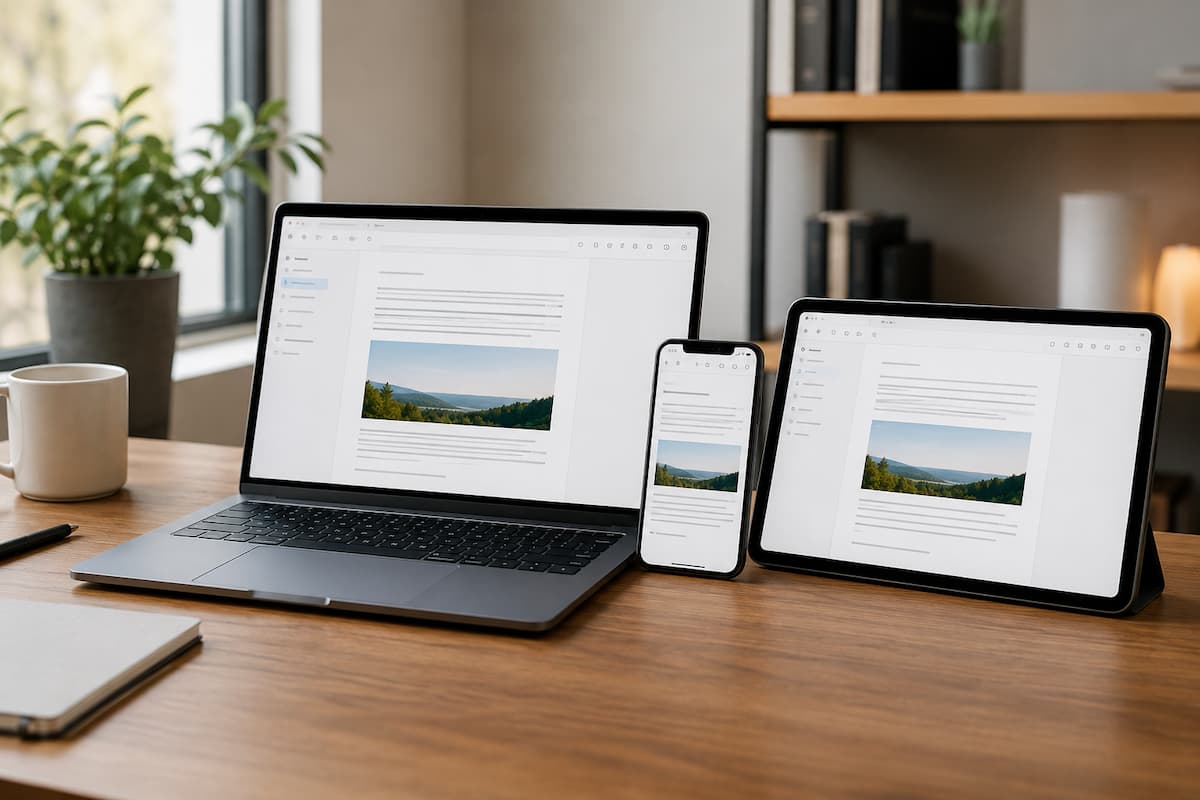
Some programs synchronize almost instantly, while others require manual transfer. A service might offer a fully functional desktop application but a mobile version with limited features. How you use your browser can also make a big difference when dealing with devices that lack native apps. The good news is that you don’t need technical expertise to evaluate these differences. You should focus primarily on how the software handles your device, files, accounts, and daily tasks. Once you know what to look for before installing software, it becomes much easier to choose a program that perfectly suits your needs, rather than having to adapt yourself to the software.
Start With the Devices You Actually Use
A common mistake is choosing software based on the devices you own, rather than the devices you actually use for a specific task. For example, someone might own a Windows laptop, an Android phone, and a tablet, yet use the laptop for writing, the phone for quick edits, and the tablet solely for reading. These usage habits are more important than the list of devices itself.
Make a list of the devices on which you expect to use the software frequently. This includes your primary computer, phone, and tablet, as well as any backup computers used for work or travel. Then, consider the specific role each device plays regarding the task at hand. For instance, if you frequently take notes away from your desk, a note-taking app requires reliable mobile access. A video editor entails different requirements; you might need a powerful desktop version while also needing to use a simpler mobile version.
This distinction helps avoid a common purchasing mistake: choosing software solely because it technically supports all platforms, without considering that the experience on one platform might not meet your needs. Platform compatibility is just the beginning.
Check Whether “Available on All Devices” Really Means the Same Thing
Software companies use several approaches to support multiple devices. A service might offer separate Windows and macOS applications, mobile apps for Android and iOS, and a browser version. Another service might provide only a desktop application and a web interface. Both can be perfectly reasonable choices, but they work differently.
A native application is designed specifically for a particular operating system. It can often integrate more deeply with the device, use local files efficiently, and provide features that a browser cannot. A web application runs through a browser and can be convenient when you frequently move between computers. Mobile applications are often designed around smaller screens and touch controls, so they may deliberately leave out advanced desktop features.
Do not assume that having an app in several app stores means every version has identical capabilities. Android itself supports a wide range of device configurations, and software developers can specify hardware or platform requirements that affect which devices can install an app. Apple similarly allows developers to identify required device capabilities for App Store compatibility. Before committing to software, open its official feature or support page and look specifically for platform differences. If a feature matters to you, search for that feature on each platform rather than assuming it is included everywhere.
Look Closely at Synchronization
For most people, synchronization is the feature that makes multi-device software genuinely useful. Imagine editing a document on your laptop before leaving home and then opening it on your phone during a train journey. If the latest version appears automatically, the software is working the way you expect. If you have to email the file to yourself or copy it with a cable, the software may technically work across devices but is not truly convenient.
There is an important distinction between syncing the application and syncing your data. You may be able to install the same program on three devices without the settings, files, history, or projects appearing on all three. A cloud-based service may keep those items in your account, while a local application may store them primarily on the computer where they were created.
Check what actually synchronizes.
- Does it include files?
- Folders?
- Preferences?
- Saved projects?
- Browsing history?
- Templates?
- Tasks?
- Offline changes?
The answer can vary considerably between products. It is also worth checking what happens when you edit something without an internet connection. Some software keeps a local copy and synchronizes later. Other services depend heavily on an active connection. If you regularly work on flights, trains, remote locations, or unreliable networks, offline behavior should be treated as a core feature rather than a minor convenience.
Understand the Difference Between Cloud Software and Local Software
Where your information is stored has a major effect on how easily software follows you between devices. Local software generally keeps some or most of its data on the device itself. Cloud software stores information on remote servers and lets your devices access that information through an account and an internet connection.
Neither approach is automatically better. Local storage can be useful when you need offline access, want direct control over files, or work with large amounts of data. Cloud-based software can be much more convenient when you regularly move between devices because the account becomes the central place where your information lives. There is also a middle ground. Many modern applications keep working data locally while synchronizing selected information through the cloud. This can give you quick access when offline while still allowing changes to appear on another device later.
When comparing software, ask one practical question: Where is my important information when I close the app?
If the answer is unclear, investigate before relying on the service for important work. Knowing where your data lives also helps you understand backup, export, and account-recovery options.
Do Not Ignore Operating System and Hardware Requirements
Two devices can both be called “Windows PCs” or “Android phones” while having very different capabilities. Operating-system versions, processor architecture, available memory, storage space, graphics hardware, and device features can all affect whether software installs or runs properly.
This matters especially with older devices. An application may support Windows in general but require a newer Windows version. A mobile application may require a particular Android or iOS version. Some applications also depend on hardware features such as a camera capability, biometric sensor, GPS, graphics support, or other system components.
Official platform documentation confirms that compatibility can depend on more than the operating-system name. Android, for example, allows developers to specify required device features and platform versions, while Apple uses device capability requirements to determine which hardware can support an app.
For Windows software, compatibility can also change as operating systems evolve. Microsoft documents situations in which applications can fail to install, fail to start, become unstable, or display errors after operating system changes. If you are buying software for an older computer, check the developer’s current system requirements instead of relying on a statement such as “works with Windows” or “available for Mac.”
Test the Most Important Task Before You Commit
You do not need to test every feature. Find the one or two tasks that would make you abandon the software if they did not work properly, and test those first. Suppose you want a document application for a laptop, phone, and tablet. Create a small document on the laptop, open it on the phone, make a change, and then check the tablet. Try the same process with the internet temporarily unavailable if offline work matters to you. This simple experiment can reveal more than a long feature list.
The same principle applies to other types of software. For a password manager, test whether your passwords and autofill features work on each device. For a photo application, check whether edits and original files are available where you expect them. For task management software, create a task on one device and see how quickly it appears elsewhere.
Pay attention to the small details. Does the software require separate accounts on different platforms? Does one version have fewer features? Does synchronization require a paid plan? Does the mobile version allow editing or only viewing? These differences often matter more in everyday use than the headline feature list.
Browser Access Can Be a Useful Safety Net
A browser version is easy to overlook, but it can make multi-device software considerably easier to live with. If you regularly use computers that are not your own, a web version lets you access your account without installing a program.
Browser access can also help when a native application is unavailable for a particular operating system. Microsoft, for example, documents software that can be accessed across several operating systems and through supported web browsers, showing why browser support can extend the reach of a service beyond its native applications.
There are limits. A browser version may not provide every desktop feature, may behave differently with local files, and may require a reliable internet connection. Treat it as another access method rather than automatically assuming it is equivalent to the full application. If you use shared or public computers, also remember to sign out and avoid saving sensitive information in the browser. Convenience should not come at the expense of account security.
Think About Your Files Before You Think About Features
Software becomes much harder to replace once years of documents, photos, projects, notes, or other information are stored inside it. That is why file ownership and export options deserve attention before you start using a service heavily.
Look for a clear way to export your information. The ideal format depends on the type of software, but the basic principle is simple: you should understand how you would get your important information back if you stopped using the service.
This is particularly important with applications that use proprietary project formats. A project may open perfectly inside one application but become difficult to use elsewhere. That does not necessarily make the software a bad choice, but you should know about the limitation before building your entire workflow around it. Keep independent backups of information that would be difficult or expensive to recreate. Synchronization is not the same thing as backup. If a file is deleted or changed and that change synchronizes everywhere, having multiple synchronized copies does not automatically give you a separate recovery copy.
Check Account and Subscription Restrictions
Multi-device access often depends on the account rather than the installation. Before subscribing, find out how many devices you can use, whether one subscription covers multiple operating systems, and whether certain features are limited to particular plans.
Also check whether the software allows you to remain signed in on several devices. Some services handle this effortlessly, while others may ask you to verify a new device or sign out an older one.
Do not overlook account recovery. A piece of software that stores important information across several devices becomes difficult to use if you lose access to the account controlling that data. Make sure you know which email address, authentication method, recovery option, or security key is associated with the account.
Price should be considered after these practical questions, not before them. A cheaper application that forces you to maintain duplicate files manually may consume far more time than a slightly more expensive service that synchronizes reliably.
Build a Simple Compatibility Check Before Installing
When you are comparing several applications, you can reduce the decision to a few practical questions. First, list every device you need to support. Then check whether the software has a native application, browser version, or both for each platform. Next, verify the minimum operating-system versions and any unusual hardware requirements.
After that, investigate synchronization. Find out exactly what is shared between devices and what remains local. Check offline behavior, export options, account limits, and whether important features are available on your main devices.
| What to check | Why it matters |
|---|---|
| Platform support | Confirms that the software is actually available where you need it. |
| Feature differences | Prevents surprises when the mobile or browser version is more limited. |
| Synchronization | Determines whether your latest work follows you between devices. |
| Offline access | Shows whether you can continue working without an internet connection. |
| System requirements | Helps prevent installation and performance problems on older devices. |
| Export and backup | Reduces the difficulty of recovering or moving your information later. |
| Account limits | Shows whether one subscription or account covers your intended devices. |
You do not need a perfect score in every category. The right choice is the one that handles the features most important to your own workflow. A browser-first service may be ideal for someone who changes computers frequently, while a powerful local application may be better for someone who works primarily on one computer and needs advanced offline capabilities.
Common Mistakes That Cause Multi-Device Problems
One common mistake is choosing software because a friend recommends it without checking whether it fits your devices. Another is installing the desktop application first and discovering later that the mobile version cannot perform an essential task. People also tend to confuse synchronization with backup, assume that all platform versions are identical, or ignore system requirements because the software appears popular.
Another problem is building a workflow around a feature that only exists on one platform. If you create a process on your computer that depends on a desktop-only tool, moving to your phone or tablet may suddenly become frustrating. Before adopting software as part of your routine, test the workflow from the perspective of every device you will actually use.
Finally, avoid storing important information in a service without understanding how you would retrieve it later. Software changes. Subscriptions change. Devices get replaced. A little planning at the beginning gives you much more flexibility later.
How to Make the Software Choice Last Longer
Before installing a new application, take a moment to read the official compatibility information. Test the features you use most often. Check the synchronization function; don’t make assumptions. Back up important files. If the software stores critical information in a proprietary format, check the available export options before relying on it.
Regularly reviewing your software is also essential. Whenever you switch phones, upgrade your computer, or change your operating system, re-evaluate the applications you use. Settings that worked perfectly two years ago might no longer be suitable for your current device. Good software should allow you to switch seamlessly between different devices. When technology works well, you should be able to focus on your work without worrying about where the latest version of your files is located.
FAQs
1. Does software need to be installed as a separate app on every device to ensure cross-platform compatibility?
No. A service can support multiple devices through a combination of native apps and browser-based access. The key question is whether the available version offers the features you actually need.
2. Is cloud-based software always better for use across multiple devices?
Not necessarily. Cloud storage simplifies the synchronization process but can also entail reliance on an internet connection, subscription fees, or account-related risks. Local software may be more suitable when offline functionality, performance, or direct file management are priorities.
3. How can I determine if the mobile version offers the same functionality as the desktop version?
Check the feature comparison or the developer’s support documentation. If the information is not clear enough, install the app and test it for the specific tasks you perform before migrating important work to the app.
4. Can I use the same software on Windows, Mac, Android, and iPhone?
Many services support some or all of these platforms, but support does not guarantee identical functionality. Check each platform individually, including operating system requirements and feature limitations.
5. Can synchronization replace a backup?
No. Synchronization ensures that information remains consistent across different locations, whereas a backup provides an extra copy to help you recover information following accidental deletion, data corruption, or other issues.
6. If the software works well on my computer but not on my phone, what should I check?
Check whether the mobile app is compatible with your phone’s operating system version, whether the necessary hardware is available, and whether the features you need are included in the mobile application. Some developers intentionally limit the functionality of mobile versions.

Daniel Mercer writes about everyday technology problems, including computer and network troubleshooting, device care, software and apps, digital organization, and online privacy. He focuses on practical explanations that help readers understand what may be causing a problem before changing settings or replacing equipment. Daniel prefers clear, straightforward guidance over unnecessary technical jargon and aims to make technology easier to understand for everyday users. His work appears across FinStructura’s five main content areas.