
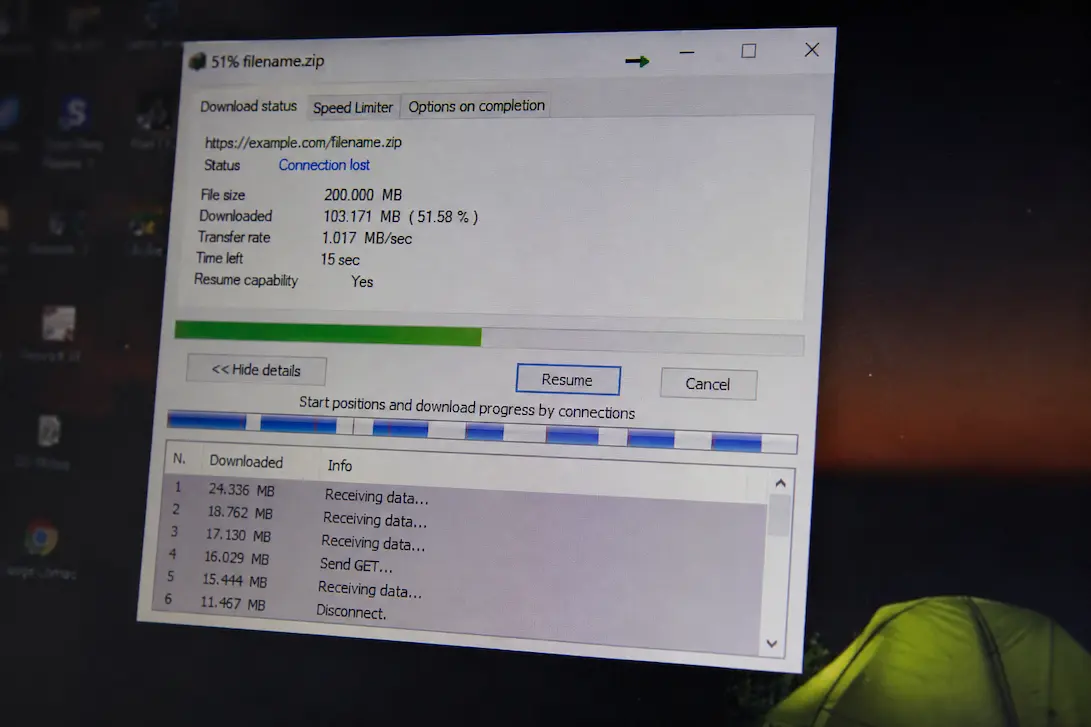
A download that gets halfway through a file and then suddenly stops can be more frustrating than a download that never starts at all. You may see the progress bar moving normally, only for the transfer to pause indefinitely, fail with an error, or restart from the beginning. Sometimes the same file downloads successfully after another attempt, while other downloads continue failing at seemingly random points.
The difficult part is that the failure does not necessarily mean your internet connection has completely dropped. A download depends on several things working together: the connection between your computer and the remote server, the browser or application handling the transfer, available storage space, the destination folder, security software, and sometimes the server’s own limits. A brief interruption in any one of those areas can be enough to stop a transfer.
Before changing network settings or reinstalling your browser, look at when the download fails and whether the same pattern occurs with other files. A single failed download may simply be a temporary server problem. Several unrelated downloads failing repeatedly can point toward something on your computer or network. That distinction can save you from fixing something that was never actually broken.
First Find Out Whether It Is One Download or All Downloads
Start with a small file from a different website. There is no need to choose another huge download; the purpose is simply to see whether the transfer can complete normally. If the second download finishes without trouble, the original server, file, or download link becomes a stronger suspect. If several unrelated downloads stop before completion, investigate your browser, network, storage, security software, or connection more broadly.
File size can also reveal something. If small downloads always finish but large files repeatedly fail after several minutes, the problem may involve connection stability, storage, server timeouts, or software that struggles with longer transfers. A useful troubleshooting habit here is to change only one variable at a time. Switching browsers, networks, download locations, and security settings simultaneously might make the problem disappear, but you won’t know which change actually mattered.
A Brief Internet Drop Can Be Enough
Your internet connection doesn’t have to disappear for several minutes to interrupt a download. A short interruption, packet loss, router hiccup, Wi-Fi roaming event, or temporary loss of connectivity can be enough to break a transfer if the server or application cannot recover from it. This is particularly noticeable on Wi-Fi. Your computer may remain connected to the wireless network while the actual internet connection briefly becomes unavailable. Other applications might reconnect so quickly that you barely notice, while a large download fails because its connection was more sensitive to the interruption.
If downloads fail while other internet activity continues normally, don’t automatically conclude that the connection is perfect. A webpage loading successfully after the failure only proves that the browser can establish another connection; it doesn’t prove that the original transfer was uninterrupted.
Watch what happens when the failure occurs
If possible, notice whether websites also become slow or temporarily unreachable at the exact moment the download stops. You can also see whether another device on the same network experiences a brief interruption. If several devices lose connectivity simultaneously, the router or internet service becomes more relevant. If only one computer has the problem, investigate that computer before changing the router.
Wi-Fi Can Be Stable Enough for Browsing but Not Long Transfers
A weak or inconsistent wireless connection doesn’t always make everyday browsing obviously bad. Web pages are often loaded in small pieces, cached locally, and retried automatically. A large file is a much longer continuous operation.
Distance from the router, walls, interference, crowded wireless channels, and switching between access points can all contribute to intermittent connectivity. The problem can become more noticeable at certain times of day or in particular rooms.
If your computer is on Wi-Fi, try the same download while connected via Ethernet, if that is practical. You don’t need to permanently change your setup. This is simply a comparison. If the download completes reliably over Ethernet but repeatedly stops over Wi-Fi, you’ve narrowed the problem considerably. The next step is to investigate the wireless connection rather than the browser.
The Download Server May Be the Real Problem
Sometimes your computer is doing exactly what it should. The server hosting the file may be overloaded, temporarily unavailable, rate-limiting connections, or terminating transfers that take too long. This is especially possible when one particular website consistently causes failures while unrelated websites work normally.
Try downloading a different file from the same site. If several files from that server fail but downloads from other sites complete normally, the hosting service or website infrastructure deserves attention. There is little value in changing DNS settings, reinstalling your browser, or resetting the entire network when the problem is happening on the server side.
Large Files Expose Problems That Small Files Hide
A 5 MB file can finish before a brief network interruption becomes significant. A multi-gigabyte download has to remain viable for much longer. That means large downloads can expose weaknesses in your connection, storage, browser, VPN, proxy, or server that ordinary web browsing never reveals. If only large downloads fail, compare the time or approximate size at which the failures occur. If a transfer consistently fails after running for a similar amount of time, a timeout or connection-management issue becomes more interesting. If it fails at completely random points, intermittent connectivity or a software component interrupting the transfer may be more likely.
Check the Destination Drive
A download finishes only if the computer can write the completed data to its destination. Check how much free space remains on the drive where downloads are being stored. Don’t assume that a file requiring 10 GB means you only need exactly 10 GB available. The browser or application may use temporary storage while downloading, and the operating system also needs working space. If the download folder is on an external drive, network location, or synchronised folder, test a normal folder on the computer’s internal storage. This test can reveal a surprisingly common source of confusion. The internet transfer may be working correctly while the destination storage is too full, temporarily unavailable, disconnected, or too slow to accept the incoming data.
A Cloud-Synced Downloads Folder Can Complicate Things
Some users configure their Downloads folder or another destination to synchronise with a cloud service. That introduces another process into what would otherwise be a straightforward local download. The browser writes data to the folder while the synchronisation software monitors those changes. Depending on the service and configuration, large or rapidly changing files can create additional disc and network activity.
If downloads behave normally when saved to a standard local folder but fail when saved inside a synchronised location, you’ve identified an important difference. You don’t necessarily need to stop using cloud storage. Keeping temporary downloads in a local folder and moving completed files afterward can be a practical way to separate downloading from synchronisation.
Browser Extensions Can Interfere With Downloads
Extensions have access to browser activity and, depending on their purpose and permissions, can interact with pages and downloads. Security extensions, download managers, privacy tools, content filters, and other add-ons can sometimes affect how a download is handled.
If the problem occurs only in one browser, test the same download in a private or incognito window where appropriate. Many browsers disable or limit extensions in private browsing by default, although this behaviour depends on the browser and extension settings. If the download succeeds there, don’t immediately disable everything permanently. Instead, review which extensions are active and test them systematically.
Security Software May Inspect the Download
Antivirus and other security tools can inspect files while they download or immediately after they arrive. This is particularly relevant for executable files, archives, installers, scripts, and files from sources that security software considers higher risk. A security product may pause, scan, quarantine, or block a file rather than allowing the transfer to proceed normally.
Check the security software’s notifications or event history when the download stops. There may be an explanation that the browser’s own error message doesn’t provide.
Avoid turning off protection simply to force a download to complete. If the security software is blocking a legitimate file, verify the file’s source and use the security product’s documented process for handling false positives.
VPNs and Proxies Can Affect Long Downloads
A VPN changes the path between your computer and the download server. That can be useful for privacy or access, but it also introduces another network component.
A VPN connection may experience a brief interruption, change servers, renegotiate a connection, or encounter congestion. A download that depends on a stable long-running connection can be affected even when ordinary browsing continues.
If you’re using a VPN, compare the download with the VPN disconnected, provided the download is otherwise available and doing so is appropriate for your situation. If the problem disappears consistently without the VPN, investigate the VPN server, protocol, application version, or network conditions rather than changing unrelated browser settings.
Browser Cache and Temporary Data Aren’t Always the Culprit
Clearing browser data is frequently recommended for almost every browser problem, but it shouldn’t be treated as a universal solution. If downloads are failing because the network connection drops or the server terminates the transfer, deleting cached files won’t solve the underlying problem.
Browser data becomes more relevant when downloads behave strangely only in one browser, especially after an update or configuration change.
If you decide to test a clean browser profile, make it a controlled comparison. A successful download from a fresh profile provides useful evidence that something in the original browser configuration is involved.
An Interrupted Download May Not Support Resuming
Whether a failed download can continue from where it stopped depends partly on how the server handles resumed requests. Some servers support HTTP range requests, allowing a browser or download manager to request only the missing portion of a file. Others may require the entire transfer to start again. This phenomenon explains why one failed download may resume almost instantly while another returns to zero. If the website repeatedly starts the file from the beginning, the limitation may be on the server side rather than something wrong with your computer.
Downloads Can Fail When the Computer Runs Out of Memory or Resources
Most ordinary downloads don’t require huge amounts of memory, but specialised applications can behave differently. Browser-heavy workflows, download managers, large archives, and applications processing downloaded data can consume significant resources. If the computer becomes increasingly sluggish before the download fails, verify Task Manager or Activity Monitor. Look at memory, CPU and disc activity while the transfer is running.
A download failure that occurs alongside severe system resource pressure is different from a download that stops while the computer otherwise behaves normally. Don’t assume that high memory usage automatically means you need more RAM. First identify which application is consuming the resources and whether the behaviour is repeatable.
The Browser May Be Closing the Connection for a Reason
Browsers have to manage downloads within their security and connection rules. A download may be interrupted if the browser determines that the connection has failed, the server has changed state, or the file is no longer available. An error message can sometimes provide a useful clue. Pay attention to whether it mentions a network error, permission problem, disc issue, blocked download, or server response.
If you immediately dismiss the message and restart the download, you may lose the most useful piece of evidence you have. Take a screenshot or note the exact error wording before trying another attempt.
File Permissions Can Stop a Download From Finishing
If the browser cannot write to the destination folder, it may start the transfer and later fail when it needs to create or modify a file.
This can happen with protected folders, unusual permissions, network locations, removable storage, or folders controlled by another application.
Try saving the same download to a normal folder that your user account owns, such as the standard Downloads directory.
If it succeeds there, investigate the original destination rather than granting the browser broad administrator privileges.
Check Whether the Problem Follows the Network
If possible, connect the computer to another internet connection temporarily. A phone hotspot can sometimes provide a useful comparison, although large downloads may consume significant mobile data.
If the same file downloads successfully over the second connection, the original network becomes a stronger suspect. If the download fails in exactly the same way on both connections, investigate the computer, browser, security software, file, or server instead. This kind of comparison is often more informative than repeatedly restarting the router because it changes the network path while leaving most of the computer unchanged.
When the Router Is Worth Investigating
If multiple devices on the same network experience interrupted downloads, streaming problems, dropped calls, or other intermittent connectivity issues, the router or internet connection deserves attention.
Restarting the router can temporarily clear certain network states, but if the same behaviour keeps returning, look for a pattern.
- Does it happen only over Wi-Fi?
- Only with large transfers?
- Only during busy periods?
- Does Ethernet remain stable?
Those details can help distinguish wireless interference from a broader internet-service issue. If only one computer is affected while other devices consistently download large files without interruption, replacing or resetting the router is unlikely to be the best first step.
When Storage Hardware Is the Suspicious Part
A download that fails while writing to a particular external drive deserves a different investigation. If the drive disconnects, becomes extremely slow, produces errors, or disappears from the operating system during the transfer, the problem may involve the drive, cable, USB connection, enclosure, or storage health.
Try downloading a small file to the computer’s internal drive. If that succeeds while downloads to the external drive repeatedly fail, you’ve narrowed the problem to the destination path. If the external drive contains important files, avoid repeatedly stressing it with failed transfers until you’ve protected anything important stored on it.
Don’t Keep Restarting the Download Without Changing Anything
If a download fails repeatedly, simply clicking the same link again may give you the same result. Instead, change one factor: use another browser, choose another destination folder, try another network, disconnect the VPN, test a smaller file, or use a different source.
The result of that test tells you more than another identical attempt. For example, if Chrome and another browser both fail on the same network but the download succeeds over a different connection, the browser is unlikely to be the main cause. If every download works except for one file from one website, the issue is more likely to be with the server or the file itself.
A Practical Troubleshooting Path
When a download repeatedly stops, start by checking whether other websites can download small files normally. Then try the same file again without changing anything and note the exact error, if one appears.
Should the problem persist, try saving the file to a different local folder and testing it in another browser. If you’re using a VPN, proxy, download manager, or unusual security software, compare behaviour without the additional layer where appropriate. If the failure remains, compare the computer with another device or network. By this stage, you should have enough information to decide whether you’re dealing primarily with the file/server, browser, computer, storage, or network. That is much more useful than applying a long list of generic “internet fixes”.
What the Failure Pattern Can Tell You
| What happens | More likely area to investigate |
|---|---|
| Only one website’s downloads fail | Website or download server |
| Only one file fails | File, server, or security scanning |
| Every browser has the same problem | Network, storage, security, or system |
| Only one browser fails | Browser settings, extensions, or profile |
| Downloads fail only over Wi-Fi | Wireless connection |
| Downloads fail only with a VPN | VPN or network path |
| Downloads fail only to an external drive | Drive, cable, USB connection, or storage |
| Large downloads fail but small ones work | Connection stability, server timeout, storage, or long-running transfer |
| Other devices fail on the same network | Router or internet connection |
| The download works on another network | Original network or ISP path |
The table isn’t a diagnosis by itself. It simply helps you choose the next test instead of changing unrelated settings.
When a Failed Download Is Not Really a Computer Problem
Occasionally the correct answer is to wait and try again later. A website can have a temporary server problem, a file can be replaced, a hosting provider can experience congestion, or a download link can expire. If your computer successfully downloads unrelated files while one particular link consistently fails, spending hours repairing your system isn’t likely to help.
If the website provides another official download mirror or a newer version of the file, that may be the appropriate next step. Be cautious with third-party “mirror” websites offering the same file, especially for software installers. A working download isn’t useful if someone has modified the replacement file or if it comes from an untrustworthy source.
FAQs
1. Why do I try again and get the same download to work?
The initial try may have suffered from a momentary network glitch or something wrong on the server end. If the download works on the second attempt, please consider that your PC may not be defective. Before making system changes, please ensure that other downloads are functioning properly.
2. Can VPN cause downloads to stop?
Yes. A VPN puts an extra step between your computer and the server you want to reach. Long downloads are subject to interruption from temporary VPN disconnects, congestion, server changes, or routing problems. You can try downloading the same file with and without the VPN to see if it makes a difference.
3. Why does a download stop just short of the end?
The last step could be to verify more files, write data to storage, rename a temporary file or finish security checks. So a destination drive that is nearly full or an issue during the last writing operation might cause a download to fail even after a majority of the data has been properly transferred.
4. Can an antivirus prevent a download?
Yes. Security software can scan files while they are downloaded or after they are downloaded and may block, quarantine or interrupt suspicious information. If a download is blocked, check the security product’s alerts or history before you turn off protection without knowing why it blocked the file.
5. Why do downloads work on other computers and not mine?
If other devices on the same network download fine, then it is more likely to be an issue with your computer. Check browser extensions, security software, storage, network drivers, VPN settings or the target folder for any problems.
6. Why are my downloads failing? Could deleting my cache help resolve the issue?
It’s probably worth verifying that the problem occurs in just one browser, but deleting the cache won’t always fix the problem. The true cause is unlikely to be addressed by clearing cached data if downloads fail due to an unstable connection, server difficulty, storage issue or security software.
Don’t Rush to Diagnose Your Internet Connection
Repeated stopping of downloads is best regarded as a transfer problem, not automatically as an internet problem. The relationship is only part of the story. Several things can influence whether the transfer is successful: the file server, browser, VPN, security software, storage device, destination folder and operating system.
Change the simplest feasible thing first and see what happens. Try another file, another browser, another destination, or another network, depending on the trend you have already detected. If any of those modifications fix the problem, you now have useful evidence about where to search next.
And if you’re only having download problems and everything else is OK, please keep in mind the simplest explanation: the problem may be on the other end of the connection. Not every interrupted download is a computer repair. Occasionally the best troubleshooting step is to find out if your machine is really at fault.

Daniel Mercer writes about everyday technology problems, including computer and network troubleshooting, device care, software and apps, digital organization, and online privacy. He focuses on practical explanations that help readers understand what may be causing a problem before changing settings or replacing equipment. Daniel prefers clear, straightforward guidance over unnecessary technical jargon and aims to make technology easier to understand for everyday users. His work appears across FinStructura’s five main content areas.