
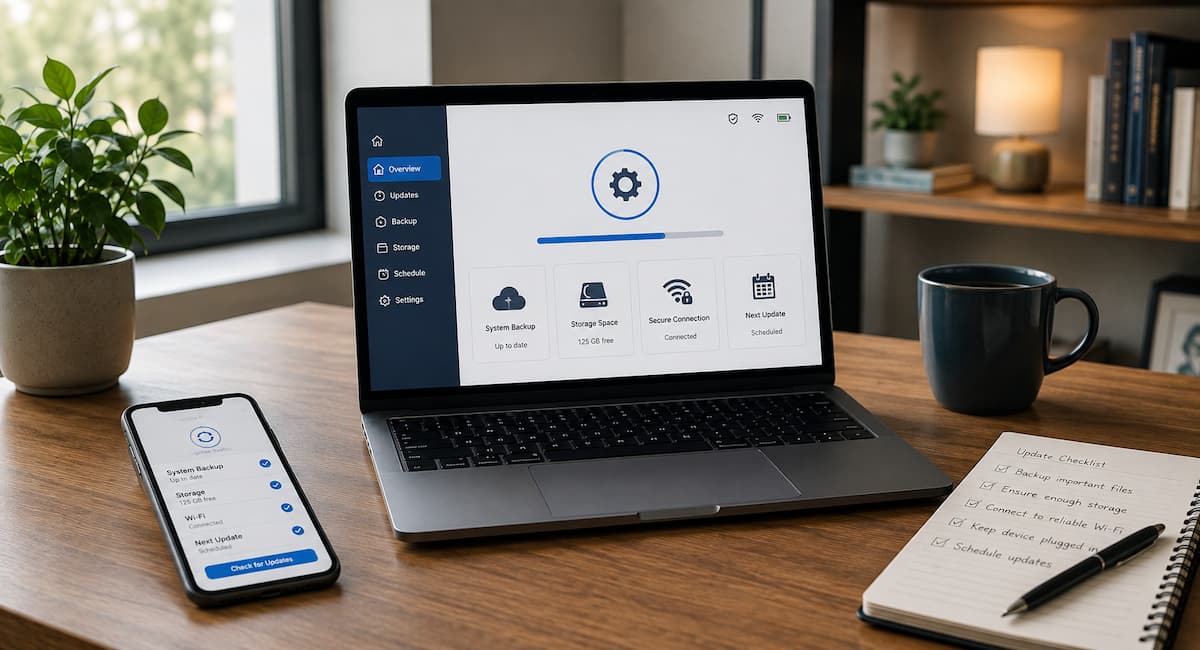
Why Software Updates Matter
It is easy to think of an update as something that simply adds a new feature or changes the appearance of an app. In reality, software updates can perform several different jobs. They may fix programming errors, improve compatibility with newer hardware, close security weaknesses, improve reliability, or change how the software works with other services.
Security is one of the most important reasons not to ignore updates for long periods. When a software maker discovers a vulnerability, a patch may be released to reduce the risk associated with that weakness. Keeping software current does not make a device immune to every threat, but running old software can leave known problems unaddressed.
Updates can also solve problems you may already be experiencing. A browser that crashes, a printer that stops responding, or an application that refuses to open after an operating system change may eventually receive a compatibility fix. This is why updates should be viewed as part of normal maintenance rather than an optional chore. Do not judge an update only by its new features. Security fixes, stability improvements, and compatibility changes can be just as important.
Understand the Different Types of Updates
Not every update deserves the same level of attention. Understanding the basic categories makes it easier to decide how quickly you should act.
| Update type | What it usually does | Typical approach |
|---|---|---|
| Security update | Addresses security weaknesses or improves protection | Install promptly. |
| Bug fix | Corrects software errors and reliability problems | Install when practical. |
| Feature update | Adds functions or makes larger changes | Plan the installation. |
| Driver update | Improves communication between hardware and software | Install when needed or recommended. |
| Firmware update | Updates software built into hardware | Follow the manufacturer’s instructions carefully. |
| App update | Adds fixes, improvements, security changes, or features | Usually keep current |
A small app update and a major operating system upgrade are not the same event. A major upgrade may affect settings, storage requirements, compatibility, and how applications work. Treating every update identically can either create unnecessary worry or cause you to overlook an important change.
Automatic Updates vs. Manual Updates
Automatic updating is useful because it removes one task from your memory. Many modern operating systems can download and install updates automatically, often choosing times when the device is less likely to be in use. Microsoft, for example, provides controls for pausing updates temporarily and scheduling restarts, while Windows active hours are designed to reduce inconvenient restart interruptions.
Apple also provides automatic update controls for its devices. On iPhone and iPad, automatic installation can occur overnight while the device is charging and connected to Wi-Fi. Macs provide controls for downloading macOS updates, installing system updates, and installing security responses and system files.
For most personal devices, automatic updates are a sensible default, particularly for security-related updates. Manual control becomes more useful when you have a reason to carefully schedule major upgrades, such as limited storage, unreliable internet access, important work in progress, or specialized software that needs compatibility testing.
| Approach | Advantages | Potential drawback |
|---|---|---|
| Automatic | Less maintenance and fewer missed updates | May install at an inconvenient time |
| Manual | More control over timing and preparation | Easy to postpone updates indefinitely |
| Hybrid | Automatic security maintenance with planned major upgrades | Requires occasional attention |
What to Do Before Installing an Update
A few minutes of preparation can prevent a small update from becoming a frustrating recovery project. The most important step is making sure important information exists somewhere other than the device being updated. For a phone, that could mean confirming that photos, contacts, and other important information are backed up. On a computer, important documents should have a current backup before a major operating system upgrade.
You should also save your current work and close applications that are running. If the update requires a restart, unsaved information may not survive the process. Check that the device has enough battery or connect it to power. Apple specifically recommends backing up an iPhone or iPad before updating and connecting it to power and Wi-Fi.
For major updates, take a moment to check compatibility. Look at the software manufacturer’s documentation if you rely on older applications, special hardware, professional tools, or unusual accessories. A normal home computer may have very few compatibility concerns, while a specialized workstation can have many.
Choose the Right Time for Updates
The safest update is not necessarily the one you install at the exact moment the notification appears. Timing matters when an installation requires a restart or may take a significant amount of time.
For a personal computer, a convenient time might be after dinner when you do not need the device for several hours. For a phone, overnight while charging may be appropriate when automatic updating is supported. If you are about to join an online meeting, travel, submit an assignment, or work on an important document, starting a major update immediately is usually poor timing. However, timing should not become an excuse for endless postponement. If an update contains an important security fix, delaying it for a long period simply because the timing is inconvenient can create unnecessary risk.
A simple timing rule
If the update is small and security-related, install it promptly when practical. If it is a major upgrade, choose a period when you have time to monitor the installation and deal with unexpected compatibility issues. This simple distinction makes update management much easier.
Prepare Enough Storage Space
Insufficient storage is a common reason updates fail. An update may need room for the downloaded package, temporary installation files, and the new version of the software. The amount of space required varies by device and update, so do not assume that the download size shown on screen is the only space you need.
If storage is nearly full, start with simple cleanup. Remove downloads you no longer need, uninstall applications that have not been used for months, and review large videos or duplicate files. On a phone, photos and videos often account for a large portion of storage. On a computer, old installers, temporary files, and large downloads can quietly consume available space.
Do not delete unfamiliar system folders just because they look large. If you are unsure whether something is safe to remove, use the operating system’s built-in storage management tools or check the manufacturer’s documentation first. Never solve a storage problem by deleting important personal files without confirming that another copy exists.
Prevent Updates From Interrupting Your Work
Unexpected restarts are one of the biggest complaints about software updates. Fortunately, many systems provide scheduling options. Windows can use active hours to reduce automatic restarts during the times you normally use the computer. You can also schedule a restart for a convenient time.
The important point is to configure these controls rather than repeatedly ignoring update notifications. If your computer knows that you normally work from 9 a.m. to 6 p.m., an automatic restart is less likely to interfere with that period when the appropriate settings are enabled.
On portable devices, keeping the device charged and connected to Wi-Fi can also make automatic updates more predictable. The exact options differ between operating systems and device models, so use the update settings provided by the manufacturer rather than relying on third-party utilities to control system updates.
For computers used for important work
Before starting work, check whether an update is waiting for a restart. If one is available, completing it before beginning a long task may be better than allowing the restart to appear at the worst possible moment.
Update Devices and Apps in a Sensible Order
When several updates are available, installing everything simultaneously is not always the best approach. A more controlled method is to start with the operating system and security-related components, then update important applications, followed by less critical software.
For example, suppose a laptop has an operating system update, browser update, graphics application update, and several small utility updates waiting. Install the operating system update first if it is required for compatibility or security. Restart the computer if requested, confirm that the system works normally, and then update the applications. This approach also makes troubleshooting easier. If something stops working after the operating system update, you have fewer possible causes than if you had installed fifteen updates at once.
| Situation | Reasonable order |
|---|---|
| Normal personal device | Operating system/security updates, then important apps |
| Device with specialized software | Check compatibility, then update the operating system and related software. |
| Firmware update | Follow the hardware manufacturer’s instructions exactly |
What to Do When an Update Causes Problems
Most updates complete without serious trouble, but problems can happen. The first rule is to avoid making several changes at once. If an application stops working immediately after an update, restart the device and check whether the problem remains. A temporary issue may disappear after the system completes background tasks.
Next, identify what actually changed. Did the operating system update? Did the application itself update? Did a driver change? Did a setting reset? Knowing this narrows the search.
Look for official support information from the software manufacturer. If a known problem exists, the company may publish a workaround or a follow-up fix. Avoid downloading unofficial “repair” programs simply because a search result promises to fix the update instantly. Such programs can create additional problems, particularly when they request broad permissions or ask you to disable security protections.
When an application suddenly stops working
Check whether the application has its own update available. If it does, installing the compatible version may resolve the problem. Also check the application’s official support page for operating system compatibility information. If the application is critical to your work, do not immediately remove it unless you know you can reinstall it and recover its settings or data.
Avoid Network and Power Problems
Updates need reliable power and, in many cases, a stable internet connection. A weak Wi-Fi connection can make a large download take much longer or fail before completion. A laptop running on low battery may also interrupt an update if it shuts down unexpectedly. For major updates, connect laptops and other portable devices to power. If your internet connection is unreliable, consider downloading the update when the connection is stable rather than repeatedly starting the process during an unstable period.
Do not deliberately turn off a device simply because the update appears to be taking a long time. Some installations spend several minutes showing little visible progress while files are being prepared or verified. If the manufacturer provides specific recovery instructions for an apparently frozen update, follow those instructions rather than forcing repeated shutdowns. Never disconnect power or force a shutdown during a critical firmware installation unless the manufacturer’s instructions specifically tell you to do so.
Create a Simple Update Routine
You do not need a complicated maintenance system to keep software under control. A short routine performed regularly is enough for most people. Start by enabling automatic updates for operating systems and applications where practical. Then check for pending updates manually from time to time, especially if you have previously postponed them.
For computers used for work, keep a note of important software that you depend on. If a major operating system upgrade is announced, check whether those applications support it before installing the upgrade. It is also useful to separate everyday maintenance from major upgrades. Small security and bug-fix updates can usually become part of normal maintenance. Major version upgrades deserve a little more planning because they may change features, settings, compatibility, or hardware requirements.
A practical monthly routine
- Check whether the operating system is current.
- Install important security and reliability updates.
- Review pending application updates.
- Confirm that important files are backed up.
- Check available storage if a major upgrade is expected.
- Review unusual update errors instead of repeatedly dismissing them.
This routine takes little time but prevents small maintenance tasks from turning into a large backlog.
Common Update Mistakes to Avoid
One common mistake is disabling all automatic updates because an earlier update was inconvenient. That solves the immediate annoyance but creates a long-term maintenance problem. A better solution is to control timing where the operating system allows it while continuing to receive important updates.
Another mistake is starting a major update without a backup. Even when the update itself is safe, hardware failures, power interruptions, storage problems, or unrelated issues can occur at the same time. A backup gives you another option if something goes wrong.
People also sometimes install unofficial update packages from random websites. Updates should normally come from the operating system’s built-in updater, the application’s official update system, or the software manufacturer’s trusted website. Finally, avoid assuming that every update requires immediate troubleshooting. If an update is still installing, give it reasonable time. Interrupting an installation too early can turn a recoverable situation into a more serious one.
A Practical Update Troubleshooting Checklist
If an update fails, work through the problem in a calm order instead of repeatedly clicking the install button.
- Read the error message. Write down the error code or exact wording if one is shown.
- Restart the device. Some update processes need a clean restart before trying again.
- Check storage. Make sure there is enough free space for the installation.
- Check power. Connect the device to a reliable power source.
- Check the internet. Use a stable connection for downloads.
- Check the official support page. Search the manufacturer’s documentation using the exact error message.
- Install other pending fixes if appropriate. A later patch may resolve an earlier installation problem.
- Avoid random repair tools. Use trusted recovery or troubleshooting methods provided by the manufacturer.
- Protect your data. Confirm that important files remain backed up before attempting advanced recovery steps.
If the device becomes unusable after an update, stop experimenting with unrelated fixes. Record what happened, including the update name, device model, error message, and steps already attempted. This information makes official support much more useful and reduces the chance of repeating unsuccessful fixes.
Conclusion
FAQs
1. Should I install all software updates immediately?
You do not need to install updates the moment they become available, but generally, it is unwise to ignore them for long periods. Security updates should take priority as they address known vulnerabilities. Major feature upgrades can usually be scheduled for a convenient time, especially if you rely on specific software. A pragmatic approach is to distinguish between urgent security maintenance and major changes that require preparation.
2. Will software updates delete my files?
Regular updates are designed to protect your personal data, but no major system change is entirely risk-free. Hardware issues, installation interruptions, software conflicts, or other malfunctions can occur. Therefore, it is wise to back up important information before a major operating system upgrade. Backups are especially important if the files exist on only one computer or phone.
3. Why do updates take up so much storage space?
The download sizes shown do not always represent the total storage space required. Devices may need additional temporary space to extract files, prepare for installation, create working copies, and complete the upgrade. If storage space is nearly full, an update may fail, even if the download size appears smaller than the remaining available space. Freeing up extra space before a major update can prevent this issue.
4. Is it safe to pause software updates?
Temporarily pausing updates can be useful when they would interrupt important work, and some operating systems even offer this feature specifically for scheduling updates. However, pausing updates should be a temporary measure, not a permanent maintenance strategy. Once the reason for the delay has passed, available updates should be installed. Prolonged delays in updating can prevent security and reliability updates from being applied.
5. What should I do if an update gets stuck?
First of all, avoid force-shutting down the computer immediately. Some update stages can take longer than expected and may appear inactive. Consult the manufacturer’s guidelines for your specific device and update. If the system explicitly displays an error message or remains stuck for an unusually long time, follow the official recovery or troubleshooting instructions. Do not delete system files or use unknown repair software.
6. Should I update apps in addition to the operating system?
Yes. Updating only the operating system while ignoring important apps can lead to compatibility and security issues. Browsers, communication apps, office software, password managers, and other frequently used programs should generally be kept up to date. Whenever possible, use official app stores or in-app update features rather than downloading update files from unknown websites.

Daniel Mercer writes about everyday technology problems, including computer and network troubleshooting, device care, software and apps, digital organization, and online privacy. He focuses on practical explanations that help readers understand what may be causing a problem before changing settings or replacing equipment. Daniel prefers clear, straightforward guidance over unnecessary technical jargon and aims to make technology easier to understand for everyday users. His work appears across FinStructura’s five main content areas.