
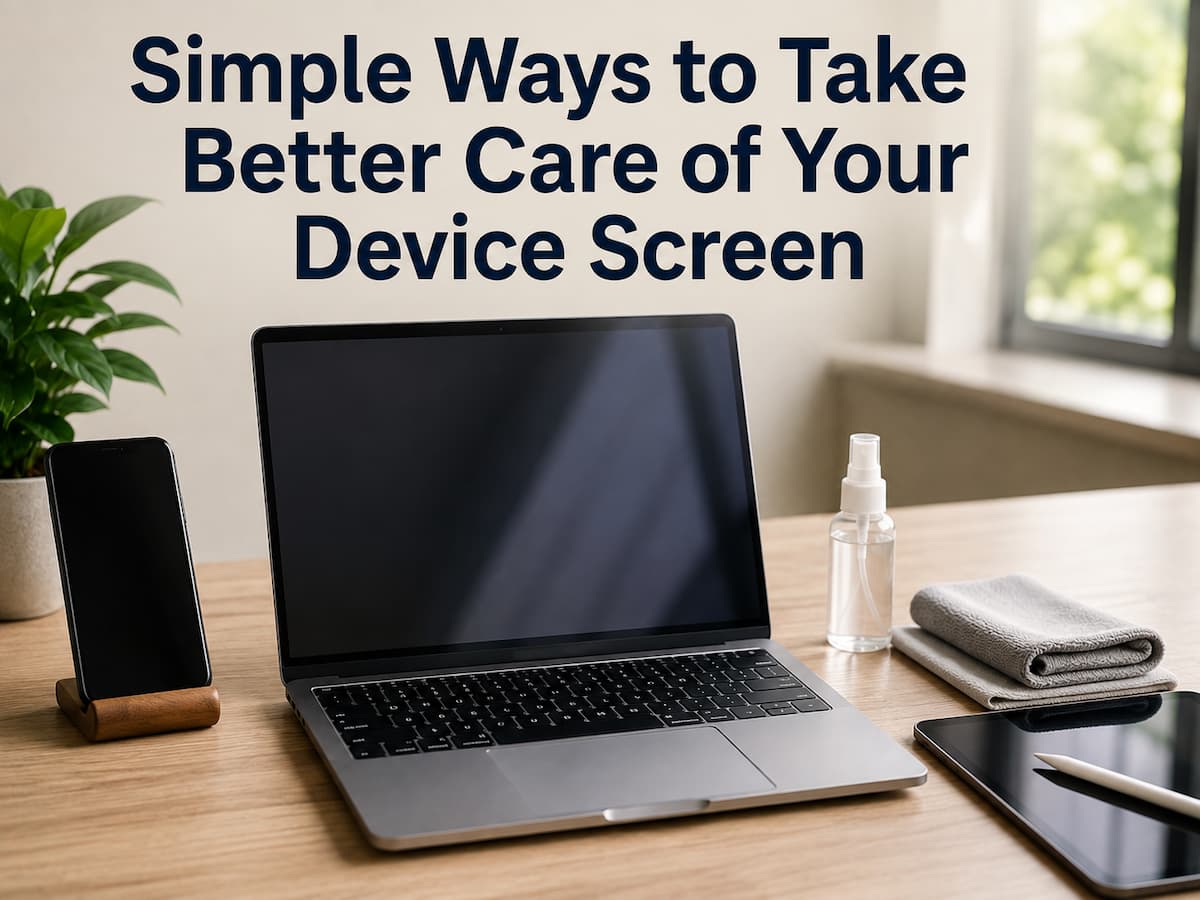
The screen is often the part of a device that receives the most attention and the most everyday abuse. We touch phone displays hundreds of times, carry tablets from one room to another, open and close laptops throughout the day, and occasionally wipe monitors with whatever cloth happens to be nearby. Over time, fingerprints, dust, scratches, pressure, and unsuitable cleaning methods can affect the appearance of a display or even cause damage.
Fortunately, good screen care does not require an elaborate cleaning routine. Most of it involves using the right materials, avoiding unnecessary pressure, keeping liquids away from openings, and storing the device so it does not accidentally touch hard objects. It is also useful to remember that different screens and coatings are not necessarily identical. Different manufacturer recommendations can apply to a phone with a touch display, a laptop with a delicate display panel, and a desktop monitor. When those instructions are available, they should take priority over generic cleaning advice.
Start by Treating the Screen as a Delicate Surface
A modern display may look like a solid piece of glass or plastic, but the surface can include protective coatings designed to reduce reflections, fingerprints, or glare. Aggressive cleaning or unsuitable chemicals can affect these coatings even when the screen initially appears fine. The safest approach is to avoid treating the display like a household window. You do not need strong glass cleaner, abrasive products, rough paper towels, or vigorous scrubbing to remove ordinary fingerprints.
Before cleaning, check the manufacturer’s instructions for your specific device. Should the manufacturer recommend a specific cleaning method, be sure to follow it. This is especially important for laptops, monitors, televisions, and devices with specialized screen coatings. For everyday marks, gentle cleaning is usually sufficient. A clean, soft, lint-free microfiber cloth is commonly more appropriate than rough fabric or household paper products. The objective is simple: remove dirt without creating another problem in the process.
Clean Your Screen Gently
Fingerprints and dust are normal parts of using a device, particularly a touchscreen. When the screen becomes dirty, turn the device off or put it into a suitable inactive state before cleaning if the manufacturer’s instructions recommend doing so. This can make smudges easier to see and prevents accidental touches while cleaning. Use a clean, soft cloth and gentle movements rather than pressing firmly against the display. If a dry cloth does not remove a particular mark, consult the device manufacturer’s cleaning instructions before using any liquid.
Do not assume that more moisture means better cleaning. Excess liquid can travel toward openings, buttons, speakers, ports, or edges of the display. Spraying cleaning products directly onto a device is particularly unnecessary and can make it harder to control where the liquid goes. The cloth should help lift fingerprints and dust rather than requiring force. If a mark does not disappear with gentle cleaning, determine what it is before repeatedly rubbing the area. Persistent residue, adhesive, or unusual discoloration may require a different approach specified by the manufacturer.
Avoid Household Glass Cleaners Unless the Manufacturer Allows Them
One of the most common screen-care mistakes is assuming that anything suitable for a household window must also be suitable for an electronic display. That assumption is not reliable. Some screens have surface treatments that inappropriate cleaning chemicals can damage. A product designed to remove grease from glass may be unnecessarily aggressive for a display coating.
The same caution applies to disinfectants, alcohol-based products, ammonia-containing cleaners, solvents, and other household chemicals. Some manufacturers permit particular cleaning agents on specific devices, while others recommend avoiding them. There is therefore no universal cleaning liquid that should be applied to every screen.
When a manufacturer provides explicit cleaning instructions, follow them. If the documentation says a particular product is acceptable, follow the specified concentration or application method rather than improvising. When no liquid is necessary, a dry microfiber cloth may be all you need.
Do Not Press Hard Against the Display
A dirty screen can be frustrating, but applying more pressure rarely makes cleaning safer. Screens are designed to respond to touch or display images, not to withstand repeated forceful scrubbing. Pressing heavily can place unnecessary stress on the display assembly, particularly on thin portable devices.
This matters beyond cleaning. Avoid placing heavy objects directly on laptops, tablets, or phones. Do not put a laptop into a tightly packed bag where books or other objects press against its lid. Avoid sitting on a device that has been placed on a chair or sofa. Pressure can also occur when a laptop is closed with an object such as a pen, charging accessory, or piece of debris between the keyboard and display. Before closing a laptop, ensure the keyboard area is clear. A screen can survive normal everyday handling without special treatment, but repeated pressure is an avoidable risk.
Keep Hard Objects Away From the Screen
Scratches often happen because the screen comes into contact with something harder or rougher than expected. Keys, coins, pens, metal objects, and gritty debris can create problems when placed in the same pocket or compartment as a phone or tablet. Even objects that do not appear sharp can exert pressure against a display when a bag is tightly packed.
Use a separate compartment when carrying a portable device. If you use a case, choose one that provides reasonable protection without putting unnecessary pressure against the screen. When using a laptop, be mindful of what you store in the space between the display and keyboard. Closing the lid while a small object is resting on the keyboard can create concentrated pressure against the display. These precautions may sound obvious, but they are effective because they address common sources of accidental damage before they happen.
Be Careful With Screen Protectors
A screen protector can provide an additional layer between the display and everyday scratches, but installing one is not automatically better for every device. If you decide to use one, choose a protector designed for the specific device and follow the installation instructions carefully. Dust trapped underneath, misalignment, excessive pressure during installation, or an unsuitable protector can make the screen less pleasant to use.
Touchscreen devices require particular attention to compatibility. A poorly designed protector may affect touch sensitivity, fingerprint recognition, clarity, or the behavior of accessories such as a stylus. Screen protectors also need cleaning themselves. If dirt becomes trapped around an edge, repeatedly rubbing the area can spread particles rather than remove them. A protector is best viewed as an optional layer of protection, not a replacement for careful handling.
Protect Screens During Transport
Many screen problems occur when people carry a device instead of actively using it. A phone placed in a pocket with keys can accumulate scratches. A tablet thrown into a backpack without protection can be pressed against books or other equipment. A laptop can experience pressure when a bag is overfilled.
Transport devices in a way that limits movement and contact with hard objects. A suitable sleeve or dedicated compartment can help, especially for laptops and tablets. For larger monitors, moving the device requires even more care. Avoid grabbing or pressing directly against the display panel. Follow the manufacturer’s handling recommendations and use appropriate packaging when transporting it over a significant distance. The basic rule is straightforward: protect the screen from pressure, impact, and contact with objects that could scratch it.
Keep Food and Drinks Away From Screens
Eating near a device may seem harmless until a small spill turns into a much bigger problem. Liquids can enter through gaps around the display, keyboard, buttons, speakers, or ports. Even when the screen itself appears sealed, the complete device may contain openings that allow liquid to reach internal components. Keeping drinks at a reasonable distance is one of the simplest forms of screen and device protection.
Food creates a different problem. Crumbs and oily residue can transfer onto touchscreens and keyboards, while particles can become trapped around device edges. If you regularly work while eating, create a little separation between the food and the device rather than relying on careful handling alone. When you divide your attention, accidents are more likely to happen.
Do Not Leave Screens in Extreme Heat or Sunlight
Heat is relevant to overall device care, and the display is part of that system. Leaving a phone, tablet, laptop, or monitor in direct sunlight can raise its temperature significantly. A portable device left inside a parked car can become particularly hot. Apart from making the device uncomfortable to handle, excessive heat can affect electronics and may accelerate wear of certain components. Displays can also behave differently at temperatures outside their intended operating range.
Use devices in environments that fall within the manufacturer’s specified operating conditions whenever possible. Avoid deliberately leaving electronics exposed to intense sunlight for long periods. If a device becomes unusually hot, give it an opportunity to return toward a normal temperature rather than immediately subjecting it to demanding workloads.
Handle Touchscreens With Clean Hands
Touchscreens are designed for frequent contact, so there is no need to avoid touching them. However, clean hands can reduce the amount of oil, dirt, and residue transferred to the surface. If your fingers are covered in grease, food residue, lotion, or other substances, the display may become dirty more quickly.
This does not mean you need to clean your hands every time you use a phone. It simply means that you should keep obvious contaminants away from delicate surfaces. If multiple people use the screen, regular gentle cleaning according to the manufacturer’s instructions can help keep the surface comfortable to use. Avoid using sharp objects or excessive fingernail pressure when interacting with a touchscreen. Touch displays respond to normal finger contact, so forceful tapping is unnecessary.
Clean Dust Before It Becomes a Problem
Dust is usually easy to deal with when it is sitting on the surface. Problems arise when people try to remove it using excessive pressure or rough materials. A soft microfiber cloth can usually remove ordinary surface dust. If dust has collected around screen edges, hinges, bezels, or ventilation areas, use the manufacturer’s recommended cleaning method.
Do not push debris into gaps around the display. Avoid improvising with sharp tools that could scratch surfaces or damage seals. For desktop setups, keeping the surrounding workspace reasonably clean can reduce how quickly dust accumulates. This is particularly useful for monitors located in areas where airborne dust is common. Regular light cleaning is generally easier and safer than waiting until a thick layer of dirt has accumulated.
Recognize When a Screen Problem Is More Than Dirt
Not every mark on a screen can be cleaned away. If you notice lines, flickering, dead pixels, persistent discoloration, cracks, pressure marks, or areas that respond incorrectly to touch, repeated cleaning is unlikely to solve the underlying problem. A cracked display should not be treated as an ordinary cleaning issue. Continuing to use a physically damaged device may expose you to sharp edges or allow further damage depending on the type of device.
Likewise, unusual display behavior that appears suddenly may indicate a hardware, software, connection, or display-panel issue. Before attempting a repair, check the manufacturer’s troubleshooting information for the specific model. For devices with significant physical damage, professional repair may be more appropriate than experimenting with the screen yourself. The most useful maintenance skill is knowing when to stop cleaning and start diagnosing.
Make Screen Care Part of Normal Device Care
You do not need a complicated schedule for maintaining your screens. A quick wipe when fingerprints become distracting, careful storage during transportation, and a little attention to heat and pressure can help keep your screens in excellent shape. The biggest mistakes are usually avoidable: using unsuitable cleaning chemicals, pressing too hard, spraying liquid directly onto a device, carrying a phone with hard objects, closing a laptop with objects trapped inside, or leaving electronics exposed to extreme conditions.
It is also worth remembering that normal signs of use are not necessarily damage. A screen does not need to look factory-new to be in good condition. The goal is to keep it clean, functional, and protected from preventable problems. Good screen care is ultimately about restraint. Use gentle materials, follow device-specific instructions, and avoid turning a simple cleaning task into an unnecessary repair project.
FAQs
1. How to best clean the screen of a device?
Follow the manufacturer’s cleaning directions. A clean, soft, lint-free microfiber cloth frequently works well for normal dust and fingerprints. Avoid excessive pressure. Do not allow liquids to enter apertures.
2. How often do I need to wipe my screen?
Wipe it clean whenever you see fingerprints, dust, or build-up. If the screen is clear and free of dirt, then you don’t need to do vigorous daily cleaning.
3. Is a screen protector necessary?
A screen protector can give an extra layer of protection from scratches and daily contacts, especially for portable touchscreen devices. Choose one built for your unique model that doesn’t interfere with the touch sensitivity or other aspects of the gadget.
4. What to do if my screen is cracked?
Don’t treat a cracked screen like a routine cleaning issue. Read the manufacturer’s safety and repair information and consult a professional repair service, particularly if damage exposes sharp edges or interferes with regular operation of the item.

Daniel Mercer writes about everyday technology problems, including computer and network troubleshooting, device care, software and apps, digital organization, and online privacy. He focuses on practical explanations that help readers understand what may be causing a problem before changing settings or replacing equipment. Daniel prefers clear, straightforward guidance over unnecessary technical jargon and aims to make technology easier to understand for everyday users. His work appears across FinStructura’s five main content areas.