
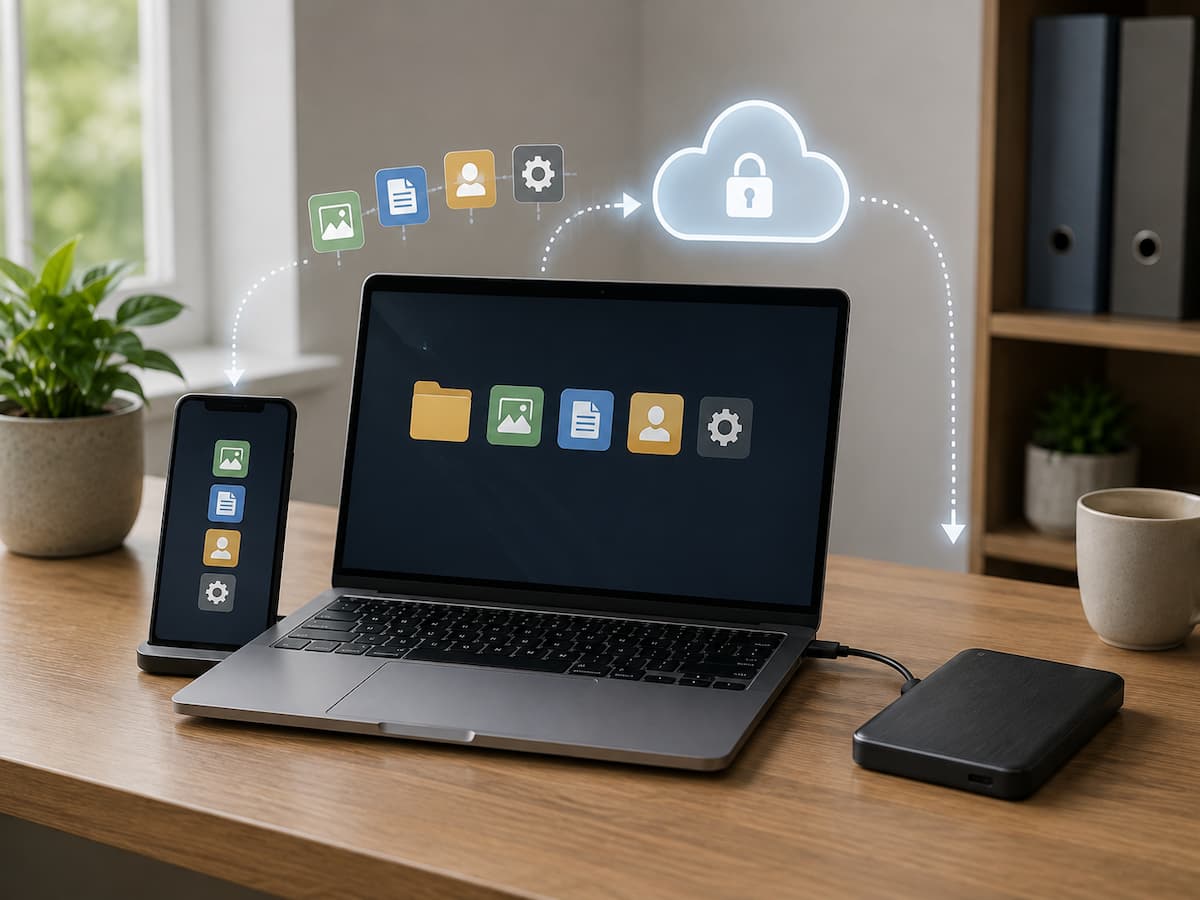
Why Backups Belong in a Device Care Routine
People often connect device care with physical upkeep. Digital information needs maintenance too. Dusting your laptop can keep it in better functioning condition, while keeping your phone from drops can lessen the likelihood of physical harm. But that doesn’t guaranty that your files will remain available. Even a perfectly handled instrument may stop working suddenly.
But a frequent backup makes a big difference, because it keeps your vital information separate from the device that contains the original copy. If your laptop stops working, you may have copies of crucial documents elsewhere. A current backup can make it much easier to transition to a replacement device if you ever lose your phone. Microsoft describes backups as copies of data that can help safeguard against unintentional deletion, device failure, and other data-loss situations. Apple and Google both have their built-in backup alternatives for their devices. Think of it as a backup of usual maintenance, not an emergency process. The optimum time to make a backup is before you need it.
What Can Go Wrong Without a Backup
A gadget doesn’t have to die fully for data loss to happen. Little mistakes are significant too. Whether you accidentally erase a folder when cleaning up storage, overwrite an essential document, lose a phone while traveling, or find a storage disk that has become flaky, files can also be impacted by malware and other security problems. Even if the repair is successful, it does not guarantee that all data on the device will remain accessible.
Imagine a student who keeps months of coursework just on a laptop. The PC experiences a storage problem right before an assignment due date. The hardware can be fixed, but the files can take a long time to retrieve, cost money, or be impossible to recover. A recent backup would not have prevented the hardware failure but could decrease the amount of work lost. The same is true for family photos, tax documents, creative works, scanned records, saved settings, and other material that would be tough to reproduce. Backups are especially important when the original information would take hours, days, or years to replace.
What a Backup Actually Saves
One of the most overlooked parts of device care is understanding what your backup includes. Turning on a backup feature does not necessarily mean that every piece of information on a device has been copied. Different operating systems and apps have different rules about what can be backed up and restored.
| Type of Information | Why It Matters | What to Check |
|---|---|---|
| Photos and videos | Often difficult or impossible to recreate | Confirm automatic photo backup is enabled. |
| Documents | May contain work, school, or personal records | Please check that important folders are included. |
| Contacts | Can be difficult to rebuild manually | Confirm whether contacts are synced or backed up. |
| App data | Some apps store important information locally. | Check the individual app’s backup or export options. |
| Device settings | Can make moving to a new device easier | Review the backup details provided by the operating system. |
Google notes that Android backups can include items such as apps and app data, call history, contacts, device settings, and SMS or MMS messages, although not every app can back up or restore all of its data. Apple similarly offers device backups through iCloud or a computer. These differences are why checking the backup contents is more useful than simply assuming everything is protected.
Choosing the Right Backup Method
There is no single backup method that is perfect for every person. The right choice depends on the type of device, the amount of data involved, how often your information changes, and how quickly you would need to recover it. Cloud backups are convenient because they can run automatically and do not require you to carry another storage device. They are particularly useful for phones and tablets. Local backups, such as copies stored on an external drive, provide another option and can be useful for large collections of photos, videos, and documents. For especially important information, using more than one backup location can provide stronger protection against a single point of failure.
Match the method to the information
A person with a phone full of family photos may prioritize automatic cloud backup for pictures and a separate copy of particularly important albums. Someone who works with large video projects may prefer an external storage solution because uploading and resgiantng huge files can take considerable time. The goal is not to create the most complicated system possible. It is to create a system that actually protects the information you care about.
Cloud Backups vs. Local Backups
Cloud and local backups solve different practical problems. A cloud copy is stored away from your physical device, which is useful if the device is lost or damaged. A local backup gives you direct access to another copy without depending entirely on an online service. Neither approach should automatically be treated as a complete solution.
| Backup Type | Main Advantage | Potential Limitation |
|---|---|---|
| Cloud | Convenient and can be automated | Requires an account, connectivity, and available storage |
| External drive | Direct control over a physical copy | Can be lost, damaged, or disconnected when needed |
| Computer backup | Useful for detailed device copies | Requires another functioning computer or storage location |
A widely used approach is the 3-2-1 backup principle: keep three copies of important data, use two different types of storage, and keep one copy in another location. You do not have to implement this strategy for every ordinary file, but it is a useful way to think about especially valuable information.
How Often Should You Back Up?
Backup frequency should reflect how quickly your information changes. If you create or edit important documents every day, a monthly backup may leave too much information exposed. If your files rarely change, a less frequent schedule may be reasonable. Automatic backup is often the easiest solution because it removes the need to remember every time. For a phone, automatic backups can be practical because new photos, messages, and settings appear continuously. For a computer, you might use an automatic backup system for frequently changing files and create additional full copies at longer intervals.
A simple rule is to ask yourself one question: How much recent work could I realistically afford to lose? If losing a week’s work would be a serious problem, then waiting a week between backups is probably too long.
Best practice: Back up important information before major changes such as replacing a device, resetting it, installing unfamiliar software, or making substantial changes to important files.
How to Build a Simple Backup Routine
A backup routine does not need to be complicated. Start by identifying the information that would be hardest to replace. Then choose a backup method that can run consistently without creating extra work.
- Identify important data. Look through photos, documents, downloads, contacts, projects, and other files that matter to you.
- Review your existing backup settings. Do not assume a backup is active simply because the device offers the feature.
- Enable automatic backups where appropriate. Automation reduces the chance of forgetting.
- Create an additional copy of especially important files. Consider another storage location for irreplaceable information.
- Verify the backup status. Look for the latest successful backup date and any warnings about storage or failed operations.
- Review the system occasionally. A backup plan can stop working after an account change, storage limit, device change, or software update.
The key is consistency. A simple backup routine that runs reliably is more useful than an elaborate plan that you rarely maintain.
Why You Should Check Your Backups
One of the most common backup mistakes is assuming that a backup is healthy just because a backup feature is switched on. In reality, backups can fail because storage is full, a device has not connected to the required network, an account has changed, or a particular type of data is excluded. Check the date of the most recent successful backup rather than only looking for an enabled setting. If your device reports a warning, please investigate it rather than dismissing it indefinitely.
For important files, periodically confirm that you can actually access the backed-up information. A backup that cannot be located or restored when needed offers little help during an emergency. Do not delete the original files immediately after creating a backup. Please ensure that the backup is completed and contains the information you intended to protect.
Keeping Backup Data Secure
A backup contains information that may be just as private as the original device. Photos, documents, messages, and account-related data should therefore be protected rather than treated as disposable copies. Use a strong password for the account connected to cloud backups and protect the device itself with an appropriate screen lock. Where supported, enable additional account security features. For external drives, keep them somewhere safe and avoid leaving a backup drive permanently connected if there is no reason for it to remain attached.
Encryption can also matter, especially when backups contain sensitive personal or professional information. The exact encryption options vary by service and device, so check the documentation for the backup system you use. Remember that convenience and security sometimes require a balance. A backup should be easy enough to use regularly but protected well enough that unauthorized access would be difficult.
Common Backup Mistakes to Avoid
Many backup problems come from small misunderstandings rather than complicated technical failures. One mistake is keeping the only backup on the same device as the original data. If you lose or destroy that device, both copies may disappear together.
Another mistake is backing up only occasionally and then assuming the newest files are included. People also sometimes forget about downloads, folders outside the normal document location, application-specific data, or files stored on removable media. Deleting old backups without checking whether a newer copy is complete can create another unnecessary risk. Similarly, filling cloud storage to its limit can prevent new backups from completing.
- Do not keep every copy in the same physical location.
- Do not assume every app backs up its data.
- Do not ignore backup failure notifications.
- Do not wait until a device fails to check your recovery options.
- Please keep in mind that backup accounts also need strong security.
Backup Considerations for Phones and Computers
What to Do When You Really Need a Backup
In the event of data loss, do not perform unnecessary modifications to the equipment in question. Occasionally, when you mistakenly erase something, it’s more complicated to restore it if you generate more new data. First find out what is missing and if it is somewhere else. Please check the latest backup and verify the date. If the backup has the information you need, follow the prescribed recovery steps for your operating system or backup service. Depending on how the backup is made, recovery can restore a whole device, specific files, or certain kinds of information.
Don’t expect that restoring from a backup will duplicate everything exactly the way it was before the incident. Some apps manage their data. Synced information may behave differently than information that is stored just in a backup of a device. Once you’re back up, double-check your backup settings. If something went wrong in the original incident, solve the underlying problem so that it’s less likely that the same circumstance will occur again.
Making Backups a Part of Your Long-Term Device Care
The finest backup habit is one you don’t even notice. Set up automated backups where it makes sense. Check in on the situation every so often. Make additional copies when you have very valuable information. When you get a new device, treat transferring and backing up your data as part of the setup process, not something to think about later.
It’s also a good time to revisit your backup plan when your digital habits change. As you begin to store more films, work more from home, shoot more images, or utilize a new computer for crucial projects, your current storage setup may not be sufficient.
Good gadget care ultimately is about eliminating unnecessary complications. You can’t prevent all hardware failures, inadvertent deletions, or the loss of devices. But you may prepare for those eventualities by keeping useful copies of information in a safe place. A few minutes spent verifying backups can be a lot less disruptive than trying to reconstruct months or years of lost data.
Conclusion
Regular backups are a realistic part of excellent gadget care, because they protect something physical upkeep cannot: your information. Even a well-maintained phone or computer can be misplaced or damaged or have a software issue. Having recent copies of key data gives you a better way to recover when those events happen.
You don’t need a super sophisticated system to begin with. Identify the most important files and information, establish dependable automatic backups when feasible, maintain an additional copy of extremely critical material, and regularly verify that the backups are indeed functioning. Pay attention to what your device has and doesn’t have.
The number one habit: don’t wait until you lose data to find out your backup plan wasn’t enough. And please remember to make backups a regular part of your device maintenance schedule, along with updating software, managing storage, and caring for your physical hardware.
FAQs
1. How many backups do I need?
There is no universal number for all users. Important information benefits from more than one independent copy. A good general model is the 3-2-1 approach: three copies, two methods of storage, and one copy off-site. For common files you can use a simpler layout. That extra copy provides extra protection against a single failure for irreplaceable images, essential records, or valuable work.
2. Do I need to back up my phone if everything is synced?
Synchronization can secure some data, but it does not necessarily protect all data stored on a phone. Different rules may apply to app data, device settings, local files, downloads, and other information. Check your phone’s backup settings and the instructions for key apps. This gives you an understanding of what information can really be recovered should the phone be lost, damaged, reset, or replaced.
3. Is there a point where a backup is too old to be any use?
Yes. An old backup may still have useful content, but it may not have your latest photographs, documents, messages, or changes. Your allowable age depends on how often your data updates. If you work with crucial files every day, then a backup several weeks old may cost you too much work. Automatic backups are beneficial since they can shorten the time between your current data and the backed-up data.
4. Is it OK to leave an external backup disk attached all the time?
This depends on how your backup system is structured, but it is not always best to leave a backup drive connected at all times. The same hardware, software, or security event that affects the computer can harm a linked drive. For some users, the ritual of periodically plugging the drive in for scheduled backups and then safely putting it away provides an extra layer of separation.
5. Do I need to back up before updating my device?
It’s always a sensible idea to make a recent backup before a major modification to your system, especially if the information on the device is crucial. Most software updates are meant to keep personal data intact, but unforeseen issues might happen. A current backup gives you the option to recover if something goes wrong. It’s particularly useful if you plan to reset your device, update storage, get a new phone, or make other significant changes.
References
- Cybersecurity and Infrastructure Security Agency (CISA), Data Backup Options—guidance on backup strategies, including the 3-2-1 approach.
- Microsoft Support, Backup, and Restore in Windows—information about Windows backup, restoration, and protection against data loss.
- Apple Support: How to back up your iPhone or iPad—official guidance covering iCloud and computer-based device backups.
- Google Android Help: Back up or restore data on your Android device—official information about Android device backups, supported data, and restoration.

Daniel Mercer writes about everyday technology problems, including computer and network troubleshooting, device care, software and apps, digital organization, and online privacy. He focuses on practical explanations that help readers understand what may be causing a problem before changing settings or replacing equipment. Daniel prefers clear, straightforward guidance over unnecessary technical jargon and aims to make technology easier to understand for everyday users. His work appears across FinStructura’s five main content areas.