
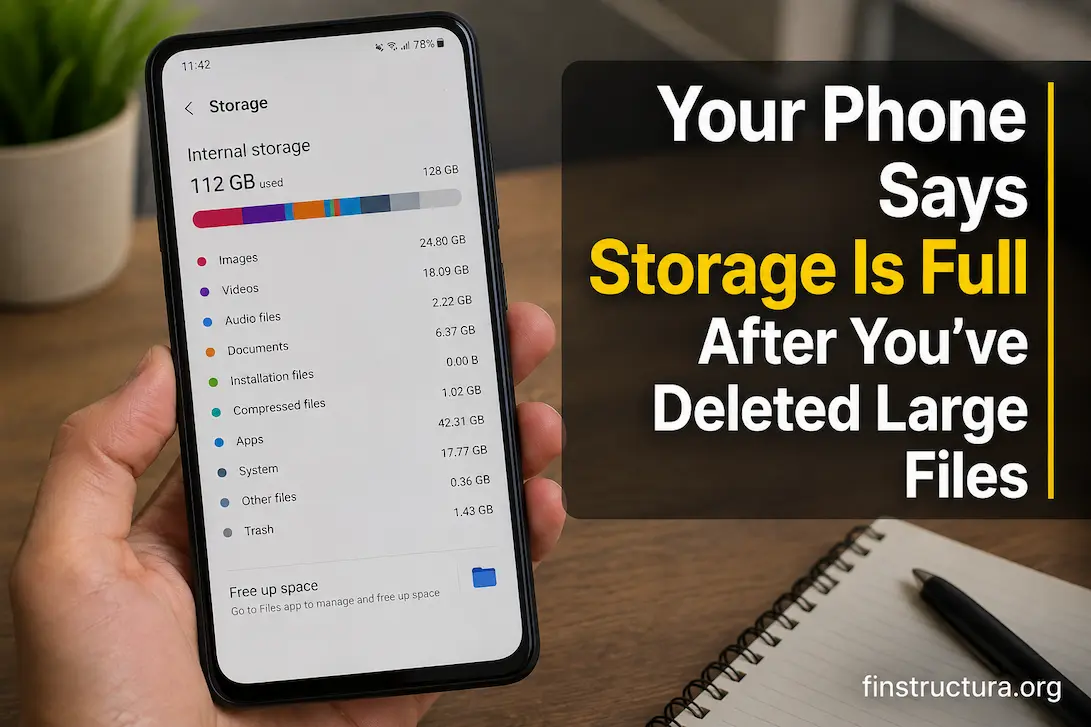
Deleting a few large videos or files should make a noticeable difference when your phone is running out of space. Yet occasionally the storage warning remains, or the available space barely changes even after removing several gigabytes. That can make it seem as though the phone ignored the deletion, but there are several less obvious reasons why the number may not change as expected.
The first thing to understand is that deleting a visible file does not necessarily mean you immediately reclaim all the storage it used. Deleted items can remain in a trash or recently deleted area, while apps may retain their own cached or downloaded data. On an iPhone, Apple also separates categories such as Photos, Messages, iCloud Drive, Other and System when reporting device storage. (Apple Support) Android devices similarly divide storage into categories and may handle deleted files through apps such as Files by Google or a manufacturer’s own file manager. (Google Help)
That means repeatedly deleting more files is not always the best next step. A better approach is to find where the storage is still being counted. Once you know which category has remained large, you can determine whether the space is sitting in a trash folder, app data, downloads, photos, messages, cached content, system data, or something else.
First Check Whether the Space Actually Changed
Before deleting anything else, open your phone’s built-in storage screen and look at the amount of used and available space. Then compare that figure with what you remember before deleting the large files. The exact amount may not change by the full size of the files you removed, particularly if some of that content was already represented elsewhere or remains in a temporary deletion area.
On Android, Google recommends checking Settings > Storage and selecting a category to see what is consuming space, although menu names can vary between manufacturers. (Google Help) On an iPhone, go to Settings > General > iPhone Storage, where iOS breaks usage into categories and may provide recommendations for freeing space. (Apple Support)
Don’t rely only on the notification that says “Storage Full”. The storage breakdown is much more informative because it tells you whether the space you expected to recover was actually significant compared with everything else on the device.
Give the storage screen a moment to catch up
Storage calculations are not always something you should judge immediately after a large deletion. The phone may need to update its index or recalculate categories before the displayed figure reflects the latest changes. This is particularly worth considering when you’ve just removed a large batch of media or files.
If the number changes after some time or after reopening the storage screen, there likely is no deeper problem. If it remains essentially unchanged, however, the next step is to find out where the space is still being used rather than continuing to delete unrelated files.
Recently Deleted Items May Still Be Taking Space
One of the easiest explanations is also one that people often overlook: the file may not actually be permanently deleted yet.
Photos, messages and file-management applications can use trash or recently deleted areas so that you have an opportunity to recover something removed by mistake. For example, Apple says deleted messages and attachments can remain in the Recently Deleted area for up to 30 days, where they can be recovered or permanently removed sooner. (Apple Support)
Files by Google similarly moves eligible files to Trash, where they can remain for 30 days before being automatically deleted. Google provides a separate option for permanently deleting items from that trash. (Google Help)
This means deleting a 3 GB video may not immediately translate into 3 GB of newly available space if the video has simply moved into a trash or recently deleted location.
Check the app that originally stored the files
Don’t assume there is one universal trash folder on your phone. Photos, file managers and some other apps can have their own deletion systems.
If you deleted photos from a gallery application, check its Recently Deleted or Trash area. If you used a file manager to remove documents, check that application’s Trash. If you deleted downloaded content from a particular app, check that app too.
The safest approach is to confirm that you no longer need the items before permanently deleting them. Once a trash folder is emptied, recovery may no longer be possible.
Photos and Videos Can Be More Complicated Than They Look
Photos and videos are often responsible for large amounts of storage because a single high-resolution video can occupy considerably more space than thousands of small documents. But their storage behaviour can become confusing when cloud backup and local copies are involved.
On Android, Google Photos can remove backed-up copies from the phone while keeping those items available in Google Photos and at photos.google.com. Google specifically provides a “Free up space” feature for removing backed-up photos and videos from the device. (Google Help)
On an iPhone, the storage screen separately accounts for Photos, while iCloud Drive content that has been downloaded locally is also included in device storage. (Apple Support) This is why deleting something from one view doesn’t necessarily mean every related local copy or downloaded item has disappeared.
If your goal is to reclaim phone storage rather than permanently erase your photographs, first determine whether your important photos are backed up. Then use the storage-management feature provided by the relevant service rather than deleting items blindly.
An App May Be Using More Space Than Your Deleted Files
If you remove several large files and the storage warning barely changes, look at your apps. Applications can accumulate downloaded media, offline content, databases, attachments, temporary files and other local data.
Android’s storage tools can show app-related usage, and Google notes that Android apps can have both cache and stored app data. Clearing cache removes temporary data, while clearing an app’s storage can permanently remove its app data, so those actions should not be treated as interchangeable. (Google Help)
This distinction is important. If a messaging, video, music, social, navigation or cloud-storage app has accumulated several gigabytes of local content, deleting a few large files elsewhere may make very little difference to the total.
Look at the largest categories first
Instead of opening every app individually, start with the storage breakdown. Find the category that is consuming the most space, then work downward.
If applications account for a large percentage of the storage, identify the biggest individual apps before taking action. Some apps provide their own controls for removing downloads or managing local content, which is usually preferable to deleting app data from the phone’s settings.
Be particularly careful with Clear Storage, Delete Data, or similarly named options on Android. Google notes that clearing storage permanently deletes all app data for that application. (Google Help) That can mean losing locally stored information or requiring you to sign in and configure the app again.
Cached Data Can Grow Without You Noticing
Caches exist for a useful reason: applications keep temporary copies of information so they can load or operate more efficiently. But some apps can accumulate substantial cached content over time.
Clearing the cache can therefore recover some space, particularly when a specific app has built up a large temporary footprint. Google describes clearing cache as deleting temporary data while leaving app settings unaffected, although the app may take longer to open the next time because that temporary information needs to be created again. (Google Help)
Cache should not, however, become the explanation for every storage problem. If your phone is using 100 GB of storage and only a few hundred megabytes are used for cache, clearing it will not solve the underlying problem. Always compare the size of the cache with the total storage you are using.
Downloads Can Hide in More Than One Place
A file you downloaded isn’t necessarily sitting in the folder you expect. Some applications keep their own downloaded content, while browser downloads, messaging attachments and offline media can be stored separately.
Android’s official guidance notes that you may need to remove downloaded movies, music and other content from the application where you downloaded them. (Google Help) Google also recommends using the Files app to browse and sort files by category, name, date or size. (Google Help)
This is particularly useful when you’re looking for large files. Rather than manually opening folders and guessing what can be deleted, sort by size where your file manager allows it. That can reveal an old download, exported video, offline map, compressed archive or document that you forgot was still stored locally.
Messages Can Quietly Consume a Lot of Space
If you regularly exchange photos, videos, voice messages or other attachments, your messaging history can occupy considerably more storage than the text itself suggests.
On iPhone, Apple explicitly includes Messages and its attachments in the device storage categories. Deleted messages and attachments can also remain in Recently Deleted for a period before permanent removal. (Apple Support)
This means someone might delete several videos from the Photos app and still see a large storage footprint because copies of media remain inside conversations. If Messages is one of the largest categories, review large attachments there rather than continuing to delete unrelated photographs.
The same general principle applies to other messaging applications: the media visible inside a conversation may have been downloaded locally even if you don’t think of it as a separate “file”.
“System” or “Other” Storage Needs a Different Approach
One of the most confusing situations is seeing a large amount of storage assigned to categories such as System, Other, or similar labels. These categories may include information that ordinary photographs, videos, or documents do not represent.
Apple explains that the iPhone’s Other category can include non-removable mobile assets such as voices, fonts, dictionaries, logs, caches, Spotlight indexing information and certain system databases. The System category represents the operating system itself and can vary by device and model. (Apple Support)
That means you should not treat a large system or other figure as though it were a hidden folder containing a pile of disposable files. Some of that space is required for the phone to operate.
Don’t delete system files just to make the number smaller
This is one situation where aggressive cleanup advice can cause more harm than good. A website or app promising to “delete hidden system junk” may encourage you to remove information that the operating system or an application needs.
If the storage breakdown points primarily to system-related categories, first check that you have genuinely cleaned ordinary large categories. Check photos, videos, messages, apps, downloads and offline content before assuming that system storage is the problem.
If the system category appears unusually large and remains that way after normal cleanup and a restart, use the support documentation for your specific phone rather than manually deleting hidden system files.
Cloud Storage Does Not Automatically Mean Your Phone Has Free Space
Cloud storage and device storage are related but not interchangeable. A photograph can exist in a cloud library while a local copy or downloaded version remains on the phone. Likewise, an offline file from a cloud-storage application can occupy local space even though the original is stored online.
This distinction is particularly important when a phone has a small internal storage capacity. Moving something “to the cloud” only frees local space when the local copy is actually removed or optimised according to the service’s design.
Before deleting anything important, confirm where the original copy lives and whether synchronisation is active. A storage-saving feature should explain whether it is removing the local copy while retaining the cloud version.
Sometimes the Number You See Is Not the Number You Expect
Storage figures can look confusing because manufacturers and operating systems calculate categories differently. The capacity printed on a phone is not fully available for personal files, as the operating system and other required components already use some of that space.
Apple explicitly separates System and Other from categories such as Photos, Apps and Messages. (Apple Support) Android similarly distinguishes storage from memory and provides category-based storage management. (Google Help)
For that reason, don’t compare your phone’s “used” number directly with the advertised capacity and assume that every missing gigabyte represents personal files. What is relevant for troubleshooting is whether available space is increasing when you remove content and which category is consuming the remaining capacity.
Restarting Can Be Useful, but It Isn’t a Storage Cleaner
A restart is reasonable after significant cleanup because it gives the phone a chance to return to a fresh operating state and can help distinguish a temporary reporting issue from storage that is genuinely still occupied.
But restarting should not be treated as a magical way to recover large amounts of storage. If the storage screen still shows that applications, photos, or other categories are consuming the same amount of space after the restart, the underlying data is still there. Consider using the restart as a check rather than the primary method for cleanup. If the number remains unchanged, please return to the storage breakdown and investigate the largest category.
A Better Order for Freeing Space
You don’t need to delete random files until the warning disappears. A more controlled approach is to work from the largest, safest opportunities toward the less obvious ones.
- Check the phone’s storage breakdown and identify the largest categories.
- Review the ‘Recently Deleted’ or ‘Trash’ folders in the apps where you removed files.
- Review large videos and photos, especially locally stored or downloaded copies.
- Review large applications and their offline content.
- Inspect downloads and large files using the phone’s file-management tools.
- Review message attachments if messaging is using substantial storage.
- Clear genuinely temporary cache data where appropriate.
- Check cloud apps for downloaded/offline files.
- Restart the phone and recheck storage.
- Investigate unusual system or other usage only after ordinary categories have been ruled out.
The order is intentional. It starts with information that is easy to verify and changes the least important things first. It also avoids the common mistake of deleting app data or system files before knowing whether those areas are actually responsible.
What If You Deleted 10 GB but Only Got Back 1 GB?
That situation deserves investigation rather than another round of deleting. First, confirm whether the deleted files went to a trash or recently deleted area. Then verify whether the files were actually stored on the phone in the first place. A cloud library, for example, may show content that is not stored locally in the same way.
Next, look at the storage categories. If Applications, Messages or another category is using tens of gigabytes, removing 10 GB of photographs may not change the overall percentage as dramatically as expected. If the storage figure has barely moved at all, the storage screen should tell you where the space is still being counted.
Also remember that deleting a file doesn’t necessarily mean the same amount of free space becomes visible immediately. The phone may need to update its storage accounting, especially after a large batch operation.
When the Phone Is Still Full After Normal Cleanup
If you’ve emptied trash folders, removed unnecessary large files, checked apps and downloads, and still see little free space, you may be using nearly all of your device’s capacity. At that point, it may be helpful to review the largest categories again rather than focusing on the files you originally deleted. Storage problems often become easier to solve once you stop asking “Where did my deleted files go?” and start asking, “What is currently using the space?”
If the category totals appear inconsistent, storage reporting behaves strangely, or the phone cannot manage files normally despite apparently having free space, check for operating-system updates and consult the manufacturer’s support documentation. Avoid using unofficial “storage repair” or “cleaner” tools that promise to modify hidden system data.
The Storage Warning Is a Clue, Not the Diagnosis
The most important thing is to avoid thinking that the only thing that matters is that your phone still indicates that storage is full after you have eliminated enormous files. They might still be in a trash folder, another app might have its own copy, cached or offline data might be more than you think, or the rest of the phone’s capacity might just be used by another category.
Begin with the breakdown of storage and go from there. Prior to handling anything called ‘System’ or ‘Other’, look at recently deleted huge apps, downloads, media, message attachments, and offline stuff. Both Android and iPhone include a built-in storage-management feature that’s supposed to assist you in figuring out what’s taking up all your storage. Most important: don’t assess achievement by the number of files you eliminated. (Google Help) Just measure it by whether the phone’s available storage increased and whether you can tell where the rest of the space is going. Once you know the exact culprit, the fix is significantly easier – and you are much less inclined to remove something vital just because the phone keeps showing you the same warning.
FAQs
1. I deleted some big videos, but why didn’t that free up that much storage?
The videos could still be in a Recently Deleted or Trash folder, or another category could already be using up much of the phone’s memory. That can also be confusing, as cloud-backed content doesn’t mean that a photo or video viewable in a cloud library is also kept locally in the same way. Look at the phone’s storage breakdown and the applicable trash folders before deleting more files.
2. If you promptly empty the Recently Deleted folder, does it clear all the space?
It can free up local space occupied by those objects. The storage display may not necessarily update in exactly the same way or precisely the same instant. Apple and Google both have made allowances for temporary deletion of some sorts of content. (Apple Support) But after you’ve purged your undesired stuff, double-check your storage breakdown, rather than just relying on the initial warning.
3. How can an app use a few gigs when I hardly use it?
App storage might consist of app installation, cached information, downloaded media, offline content, databases and other local data. Some programmes can gather this information even if you don’t open them every day. Before removing all of an app’s data, check the application’s built-in storage management settings.
4. Why is the system storage so big on my iPhone?
iOS reserves space for the operating system and other essential components, whereas Apple’s Other category can encompass caches, logs, indexes, databases and other non-removable assets. (Apple Support) That big number doesn’t suggest there’s a secret stash of files you can go and manually erase.
5. Can the phone say it is full while there is space?
Sometimes a storage warning can persist while the phone is recalculating its storage, but if it does, check the actual available space and the breakdown of the categories. If the numbers don’t seem right, or if the device can’t perform regular storage functions, try rebooting it and checking for system updates before taking any more serious measures.
6. Do I have to install a storage cleanup app?
Typically you want to get started by using the storage capabilities integrated inside the phone. Android and iPhone offer built-in tools that allow you to see and clear storage, but third-party cleaners might have broad permissions or push you to delete things without properly describing what will be deleted. (Google Help)

Daniel Mercer writes about everyday technology problems, including computer and network troubleshooting, device care, software and apps, digital organization, and online privacy. He focuses on practical explanations that help readers understand what may be causing a problem before changing settings or replacing equipment. Daniel prefers clear, straightforward guidance over unnecessary technical jargon and aims to make technology easier to understand for everyday users. His work appears across FinStructura’s five main content areas.